1. Item Name : Inovit - IT Solution & Technology WordPress Theme
  2. Created: 20 December 2024
  3. Item Version : v 1.0.0
  4. Author : Intertheme
  5. Support Ticket: https://themeforest.net/user/intertheme
Introduction

Inovit WordPress Theme Documentation

For any support please don't hesitate to contact us at Support Center . We provide 13 hours real-time support for our customers.

We would like to thank you for choosing Inovit - IT Solution & Technology WordPress Theme.

Getting started

You need at least WordPress version 6.0.0+ installed for this theme to work properly. It is strongly recommended that you always use the latest stable version of Wordpress to ensure all known bugs and security issues are fixed. Other getting_started:

  • PHP version 5.6 or greater. But for maximum speed gain we recommend you to use PHP version 7.3+.
  • MySQL version 5.6 or greater OR MariaDB version 10.0 or greater.
  • WordPress memory limit of 128 MB or greater.

Recommended PHP configuration limits

  • max_execution_time 900
  • memory_limit 512M
  • post_max_size 256M
  • upload_max_filesize 500M
  • max_input_time = 900
  • max_input_vars = 1000

Server getting_started: https://make.wordpress.org/hosting/handbook/handbook/server-environment

What's Included

After purchasing Inovit theme on themeforest.net with your Envato account, go to your Download page. You can choose to download Inovit theme only (Installable WordPress Theme) or the entire Inovit theme package which contains the following files:

The contents of the theme package downloaded from ThemeForest

  • inovit.zip - An Installable WordPress Theme zip file. this file you need to upload to WordPress.
  • inovit-child.zip - This file contains the basic child theme that you can use with our theme. Just installing it won’t hurt and in case you decide to make some changes/extend the source code of the theme, it will be very helpful because it helps not to lose your custom changes after updating the parent theme. More on child themes
  • Plugins - This folder contains plugins required to work with our theme.
  • Demo Data - This folder contains the demo content file which will help you to import the demo manually.
  • Licensing - This folder contains the terms and conditions of the license.
  • Documentation - This folder contains what you are reading now :)
Installing the theme

Important! if you download the All Files archive from ThemeForest and try to upload it to your WordPress, you will receive this error: Theme is missing the style.css stylesheet. Please make sure you unzipped the main archive and are uploading the correct file to your WordPress.

When you are ready to install a theme, you must first upload the theme files and then activate the theme itself. The theme files can be uploaded in two ways:

1. Using Theme Uploader

Follow the steps as instructed in the images below:

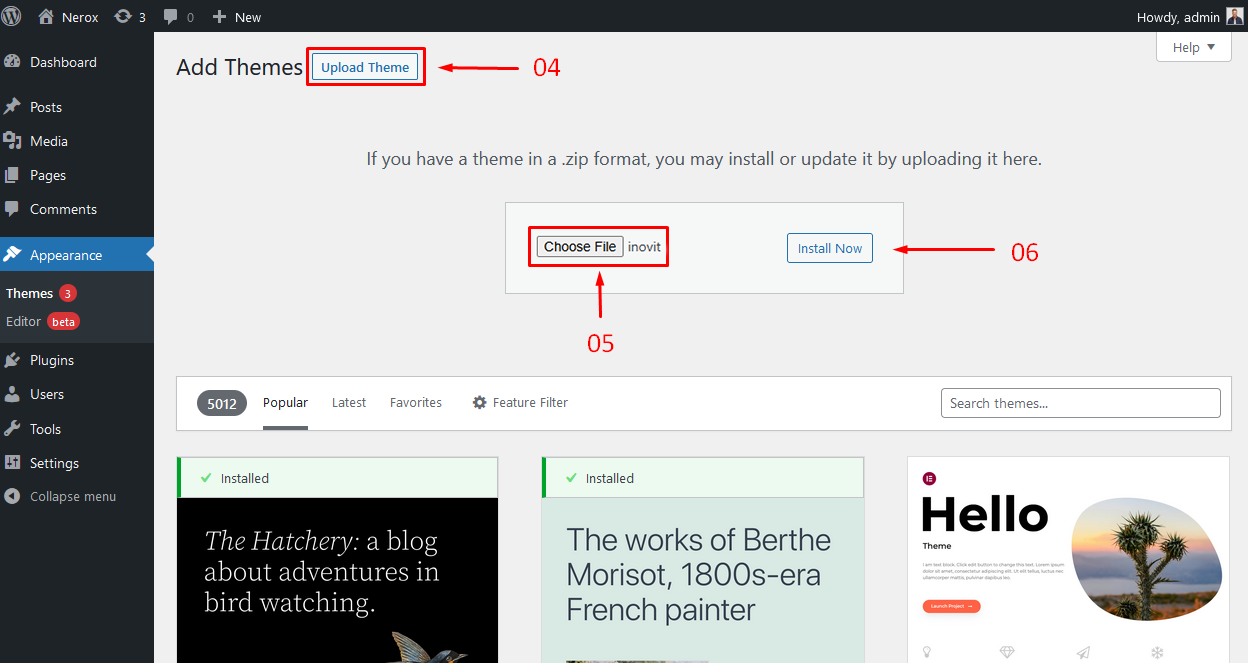
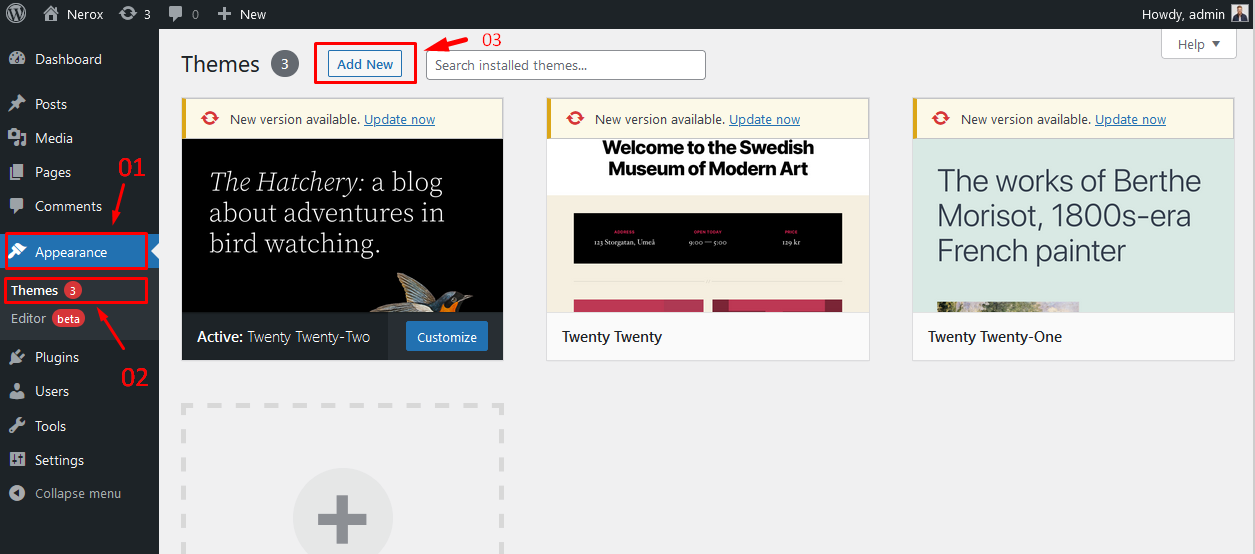
  1. From the dashboard go to Appearance Themes Add New Upload Theme
  2. Click on “Choose File” and select inovit.zip
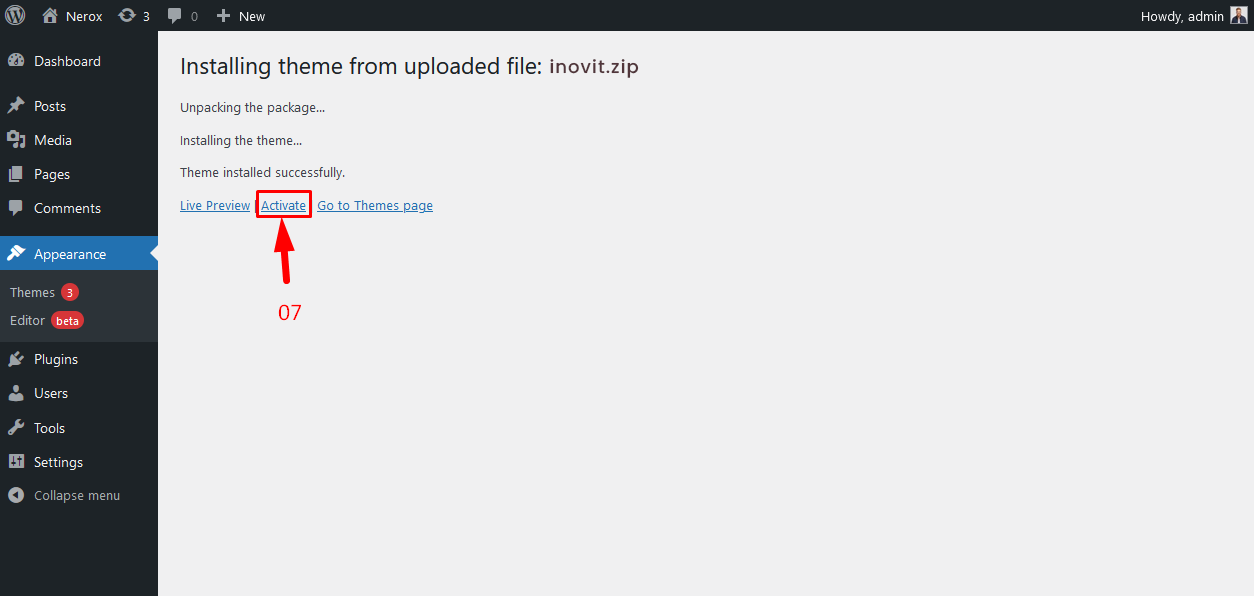
  3. Click on “Install Now”.
  4. Active the Theme

N.B: All plugins must be installed and activated if you want your site to look exactly like demo.

3.1.1
Appearance → Themes → Add New
3.1.1
Click on “Choose File” and select inovit.zip and Click on “Install Now”.
3.1.1
Active Inovit Theme

2. Using FTP Clients

Follow the following steps to upload your theme using FTP clients:

  1. Use an FTP such as FileZilla and go to your WordPress installation director
  2. Navigate to /wp-content/themes/ folder and upload the theme folder there
  3. Log in to your WP Admin Dashboard and open the Appearance Themes menu
  4. You will now see Inovit Theme listed among the other themes. Click on Activate and you’re done!

3. Updating Theme

Occationally we provide updates which includes new features and bugfixes. Updating WordPress theme is standard WordPress functionality.

Before Updating Theme :

** Before updating please make sure to keep a backup of your installed theme and plugins (eg. Inovit Core) to be on safe side.
You can use this plugin to keep the backup: https://wordpress.org/plugins/wp-theme-plugin-download/

There are few ways to update WordPress theme. You can follow any of the methods described below:

Method 1: Automatic Update by Using Envato Market Plugin

  1. Install and activate the "Envato Market" plugin manually. Here's the plugin zip file: http://envato.github.io/wp-envato-market/dist/envato-market.zip
  2. From WordPress Admin Panel, navigate to "Envato Market" menu.
  3. In this page, you'll find a field for insering Envato Token. Insert your Envato Token Code from there. You can generate this code from this link: https://build.envato.com/create-token/?purchase:download=t&purchase:verify=t&purchase:list=t.
    Remember, while generating the token, you have to login using the same envato id which you used to purchase theme.
  4. After completed the above steps successfully, Navigate to Appearance -> Themes. Here you'll see an "Update now" link beside your theme. Click on that link and your theme will be updated automatically.

Method 2: By Uploading zip File

  1. From WordPress Admin Panel, Navigate to Appearance -> Themes.
  2. Activate any other theme (eg. Twenty Seventeen) than the current one.
  3. Delete Inovit Theme.
  4. Now you have to upload the updated theme zip file. To do this, Navigate to Appearance -> Themes -> Add New -> Upload. Go to browse, and select the zipped theme folder. Hit "Install Now" and the theme will be uploaded and installed.

Method 3: By FTP

  1. Using your FTP client, navigate to "/wp-content/themes/" folder on your server and delete the "Inovit" folder from there.
  2. Now upload the latest non-zipped theme folder into that "/wp-content/themes/" folder .

After Updating Theme :

** After updating the theme please update all plugins which come with the theme.

4. Installing required plugins

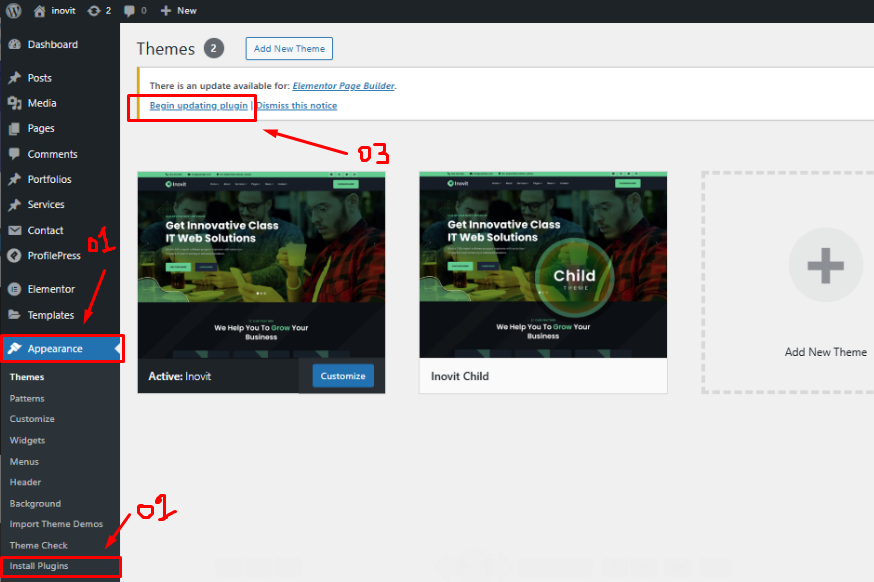
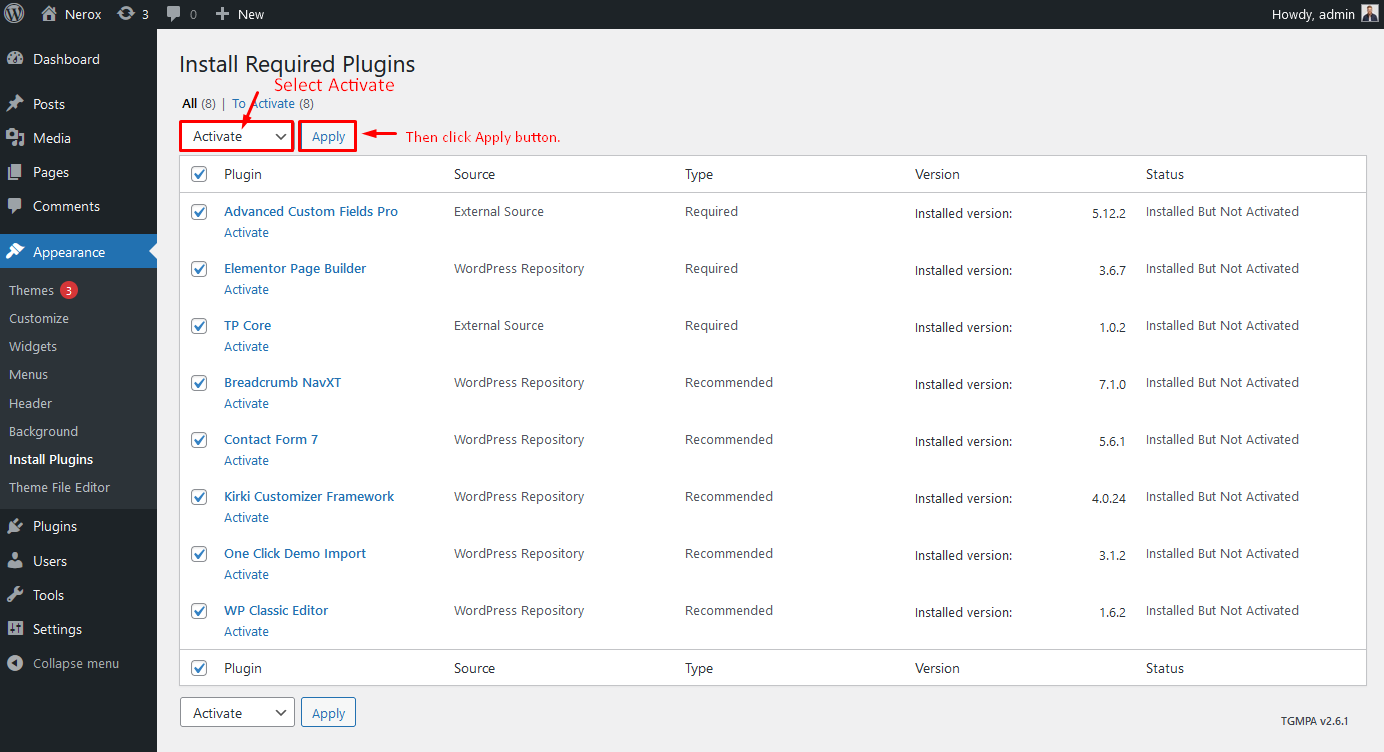
Inovit theme requires a set of core and additional plugins to function correctly. A plugin is an additional component that offers functionality and features beyond a typical WordPress installation. Without them, most of its functionality is not available. After installing the theme you will be prompted to install the required plugins at the top of your dashboard.

  1. From the dashboard go to Appearance Install Plugins
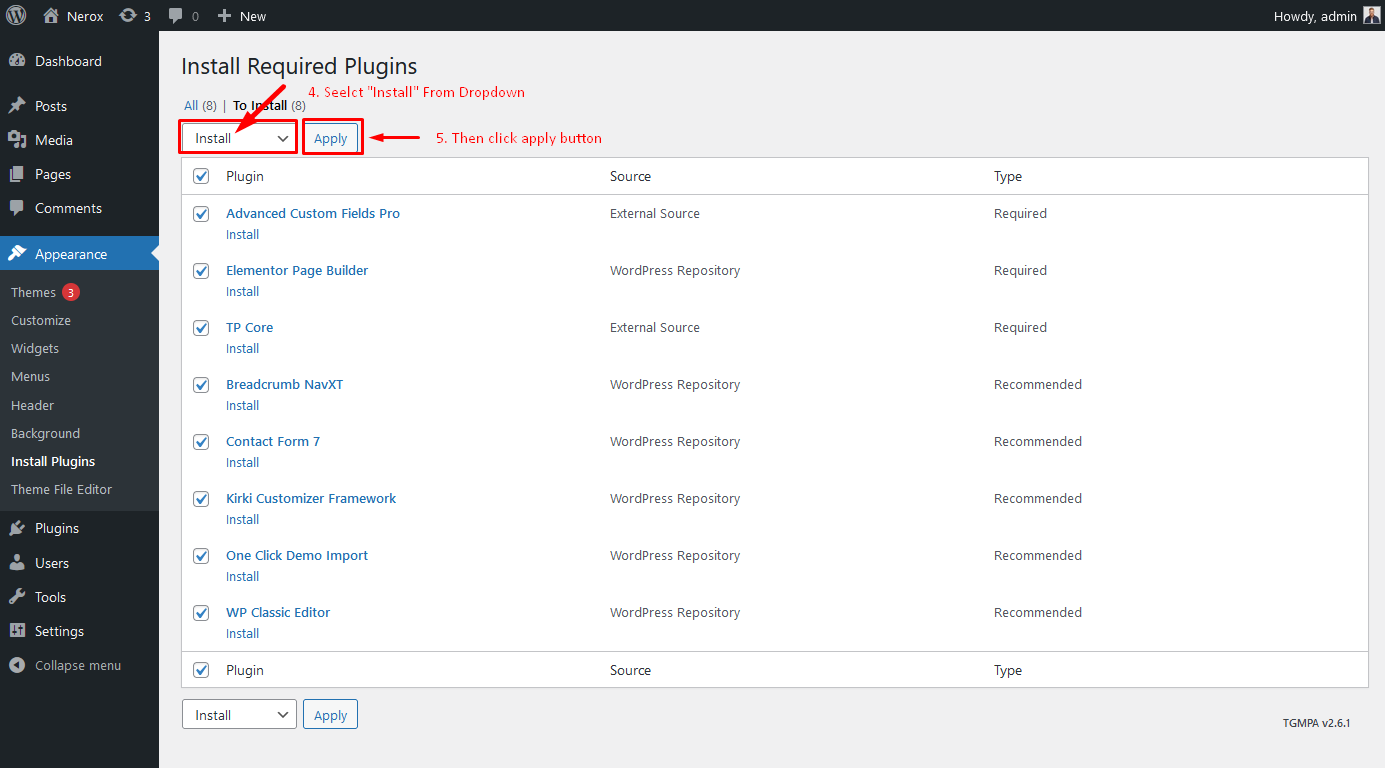
  2. Toggle all the required plugins and hint “Install”;
  3. The last step will be activating the plugins.
Click on the begin installing plugins link to install all the required plugins.
Select all and install
Select all and Activate

Importing Demo Contents

We are providing you two methods for importing demo contents: Automatic and Alternative. You can follow either one of these methods.

  1. One Click Method (Recommended): This method will remove all your existing data, so use this method only in fresh website. This procedure will be faster because you just have to do one click and then everything will happen automatically. If you want an exact clone of demo website without doing any manual configuration after importing data then this method is appropiate for you.
  2. Manually Import: Use this method only if:
    • Automatic demo import method fails ( Only few of our customers like 5% have experienced this issue due to their hosting limits, in that case we also provide free demo importing service if you contact with us).
    • You already have a working website with existing contents(eg. posts, pages etc).

1. One Click Method

Want to build your site like the demo? You can do it by only one click!

Note: Please remember that when you are done with the demo import, your some existing settings will be replaced by the demo contents Like: Your menu, Customizer. So it is recommended that you should only do this in fresh site.

  1. Ensure, that the One-Click Import plugin is installed and activated;
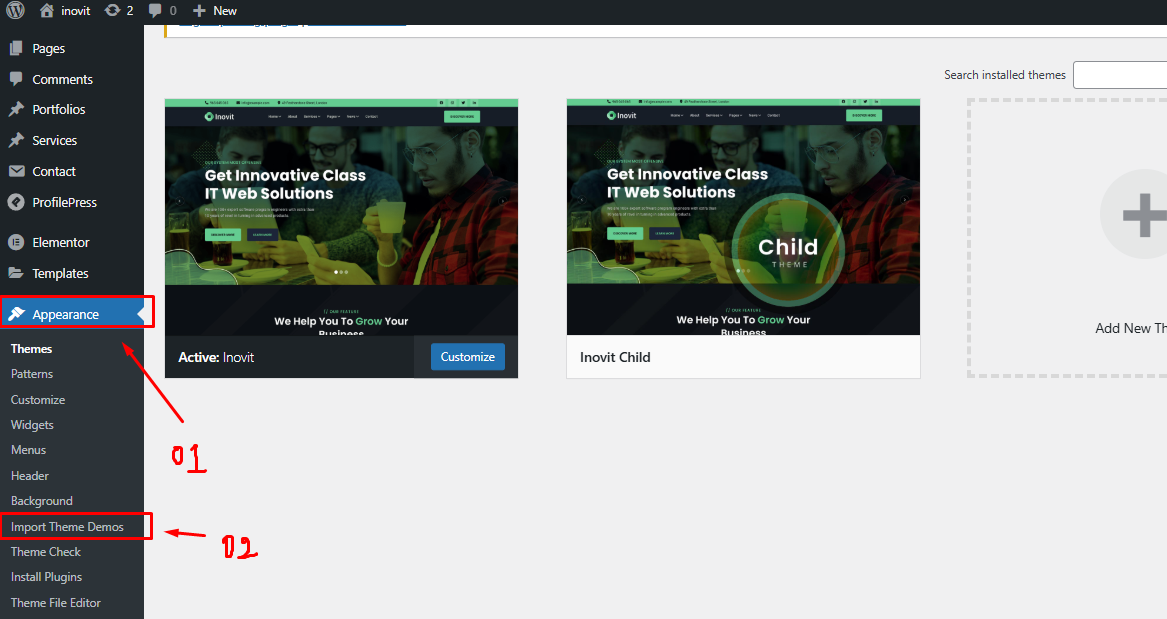
  2. From the dashboard go to Appearance Import Demo Data
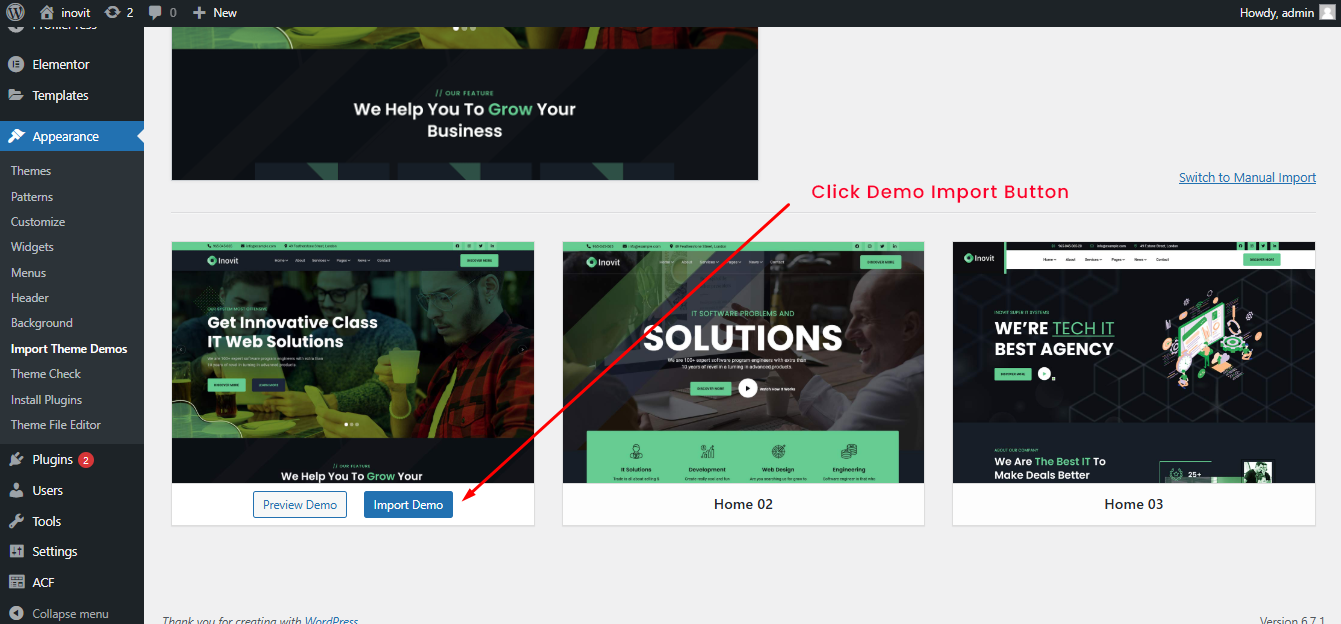
  3. Choose the demo you want to install and click on the “Import” button​ below​;
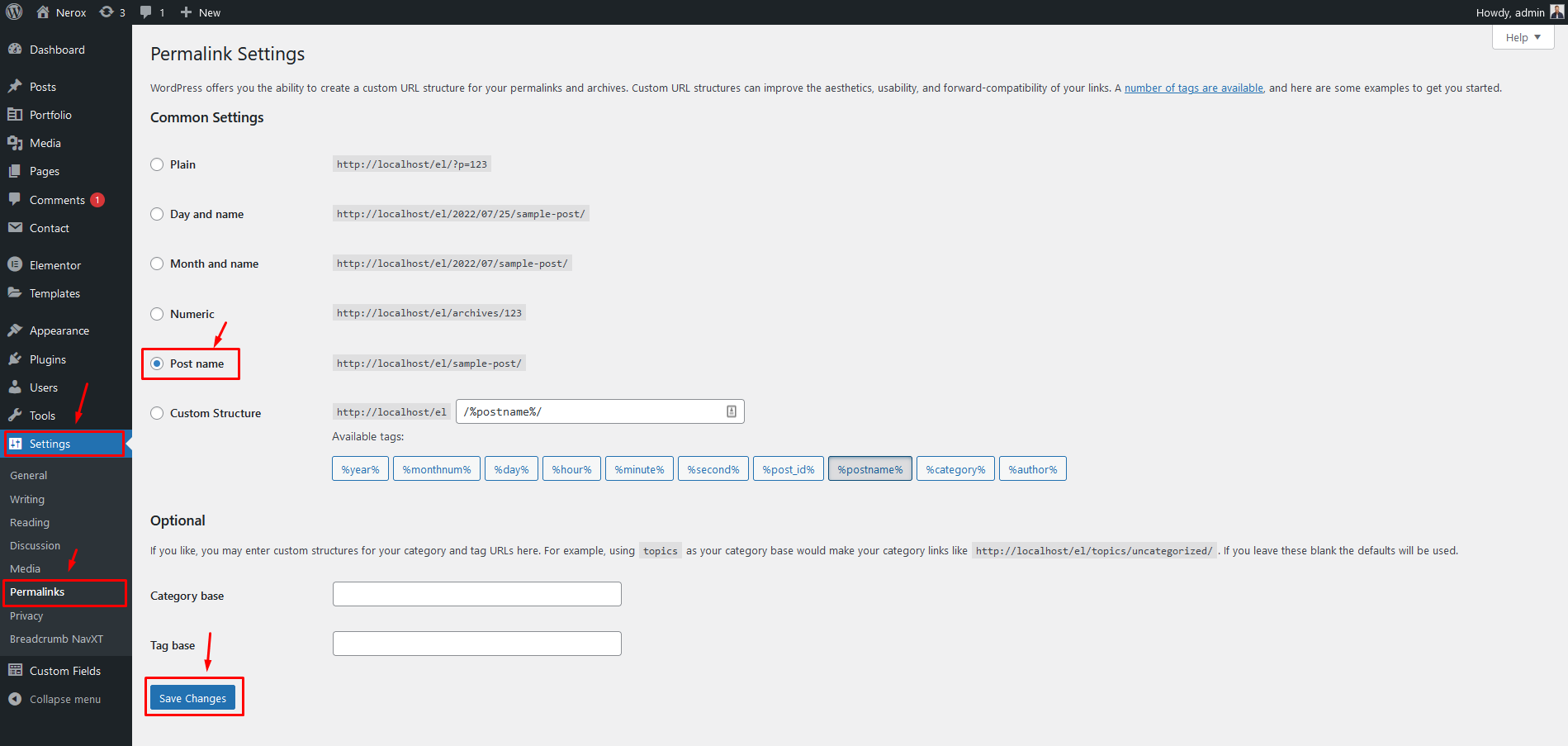
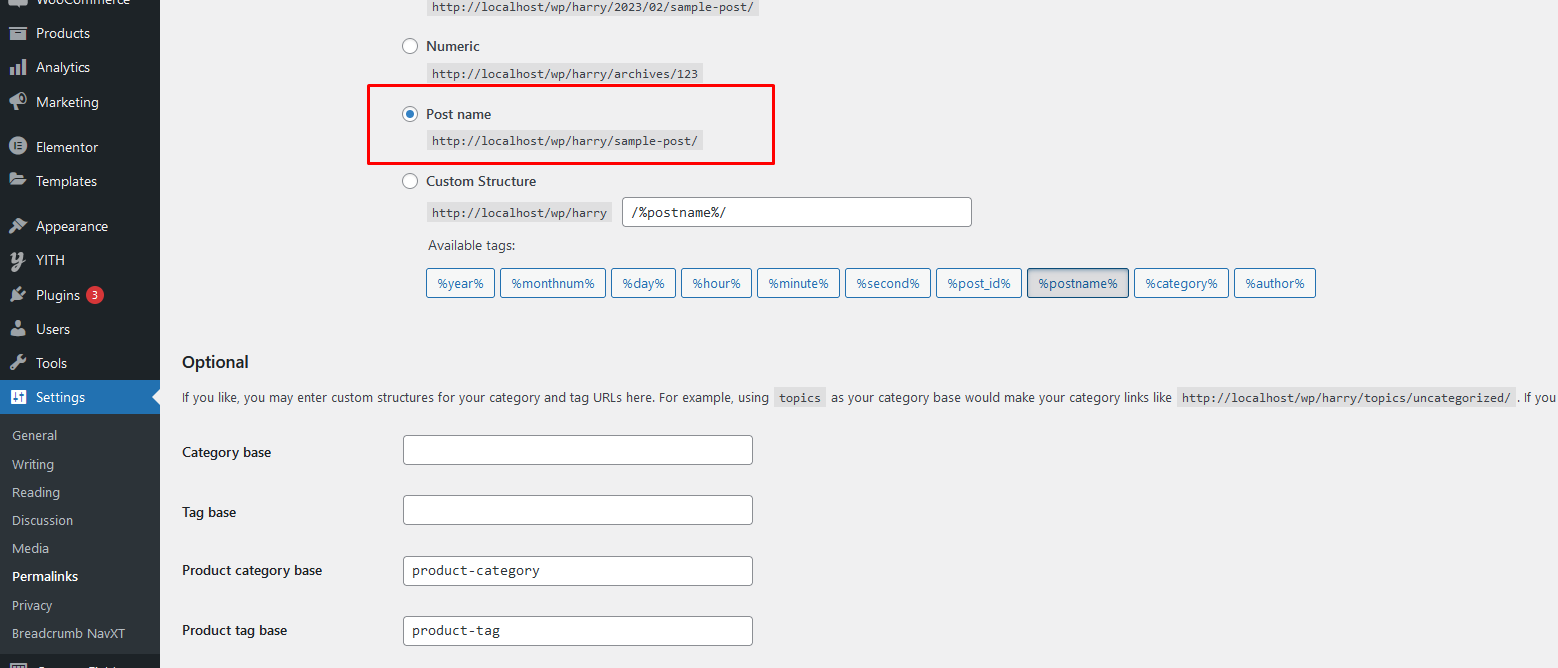
  4. And change the permalink: From the dashboard go to Settings Permalink
4.1.1
go to Appearance -> Import Demo Data
4.1.1
Click on the "Import" button
4.1.1
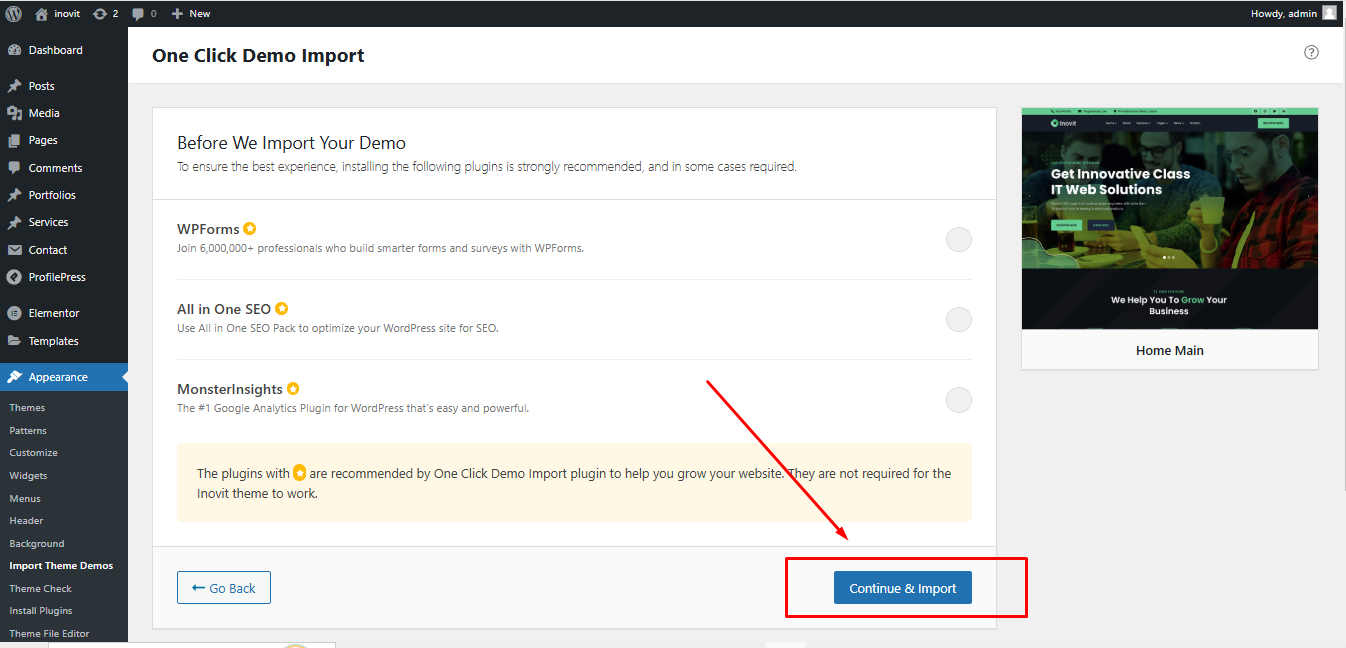
Click "Yes, Import" Button
4.1.1
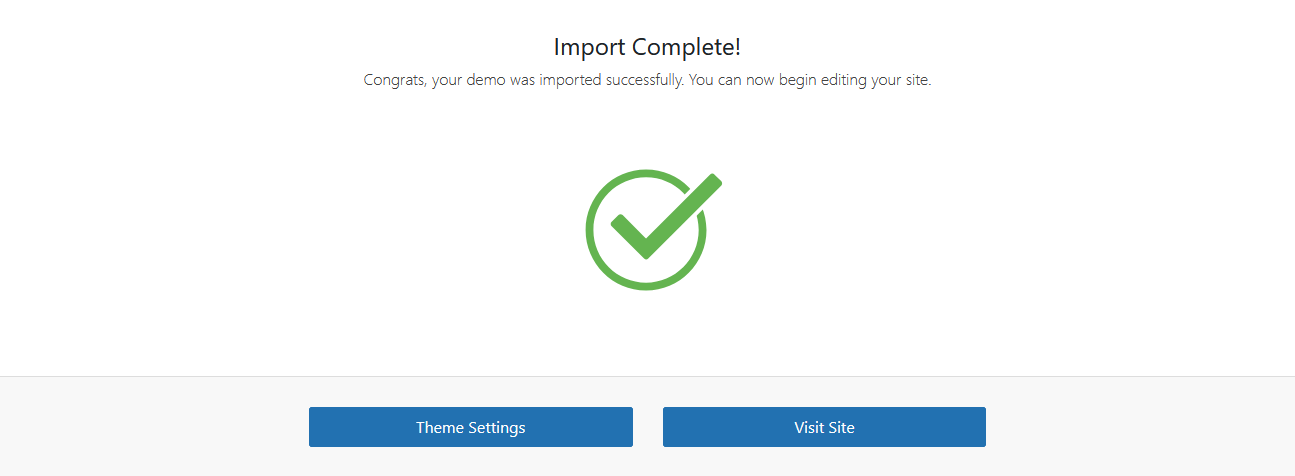
Import Complete! Congrats, your demo was imported successfully. You can now begin editing your site.
4.1.1
Change permalink

2. Manual Import

Please follow the instructions below:

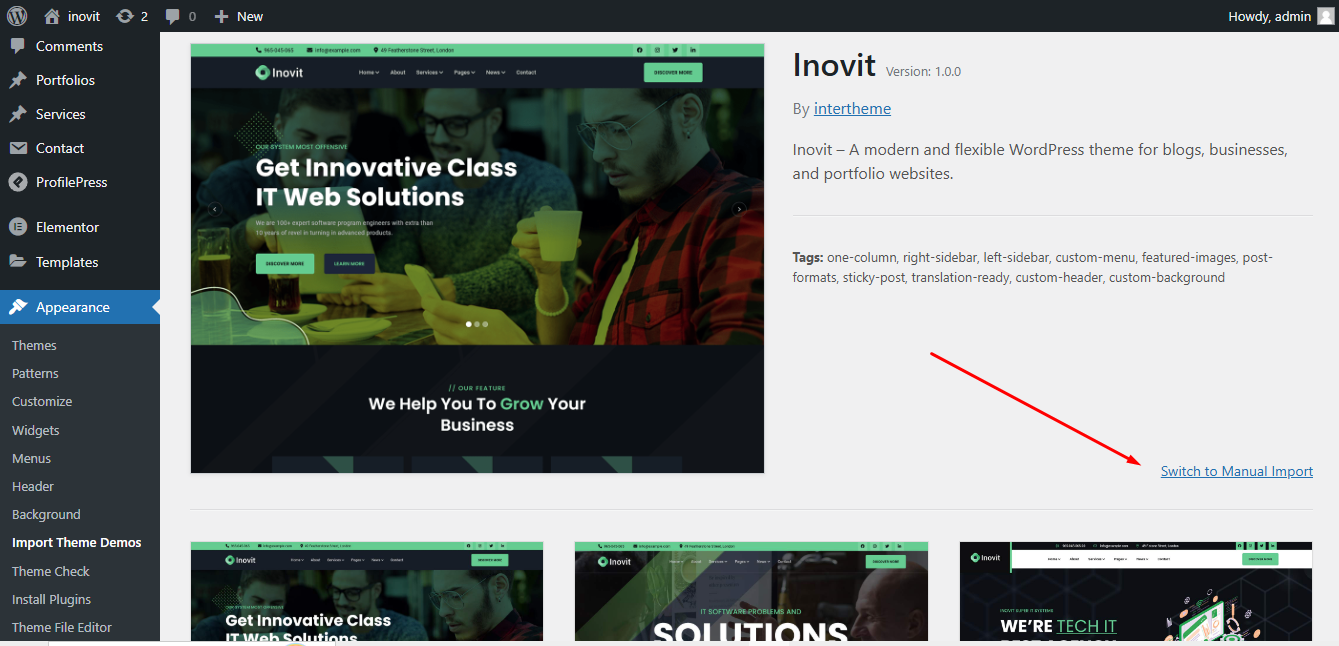
  1. Click switch to manual import from right corner.
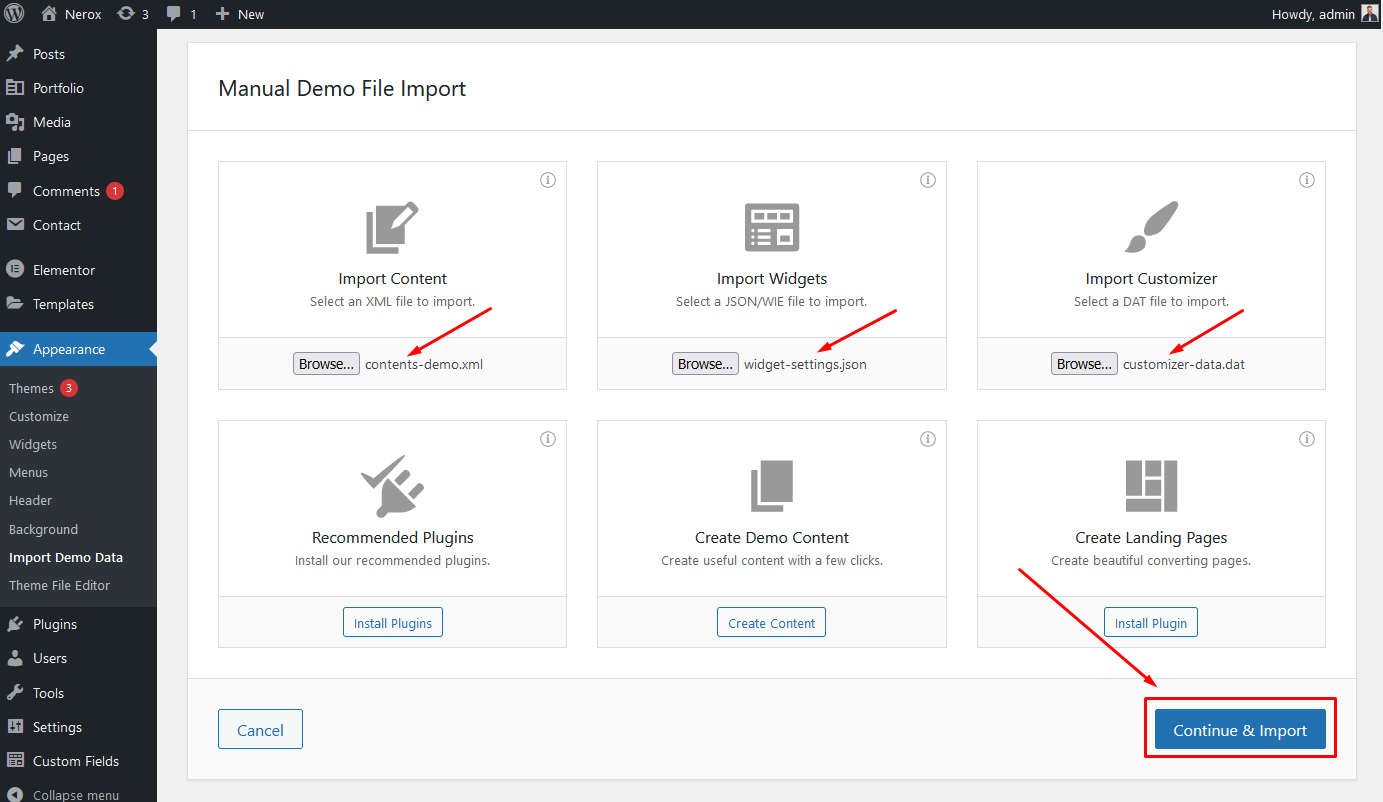
  2. Choose contents-demo.xml file for all content import
  3. Choose widget-settings.json file for widget import
  4. Choose customizer-data.dat file for customizer import
  5. and last click Import demo data button

Note: We have added all the above files to the Theme package -> Demo Data folder.

4.1.1
Click "switch to manual import" link
4.1.1
Choose all file and click the "import demo data" button

Where Is My Purchase Code?

To learn about how to find your purchase code. When you buy a product from envato you get a purchase code. visit the following link:

Purchase Code

Basic Site Setting

Customize Menu

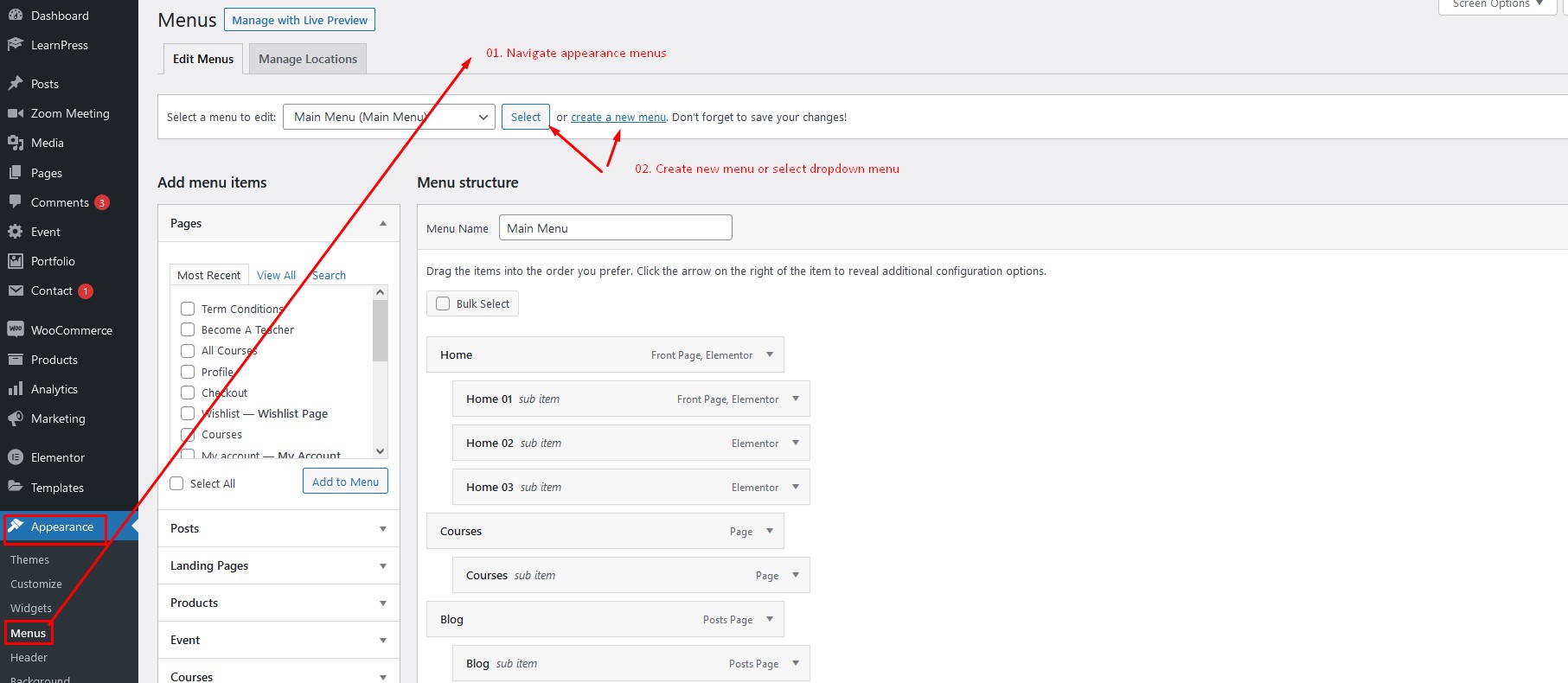
To customize the menu please login to wp-admin and navigate to Dashboard Appearance Menus and follow the following steps:

8.2.1

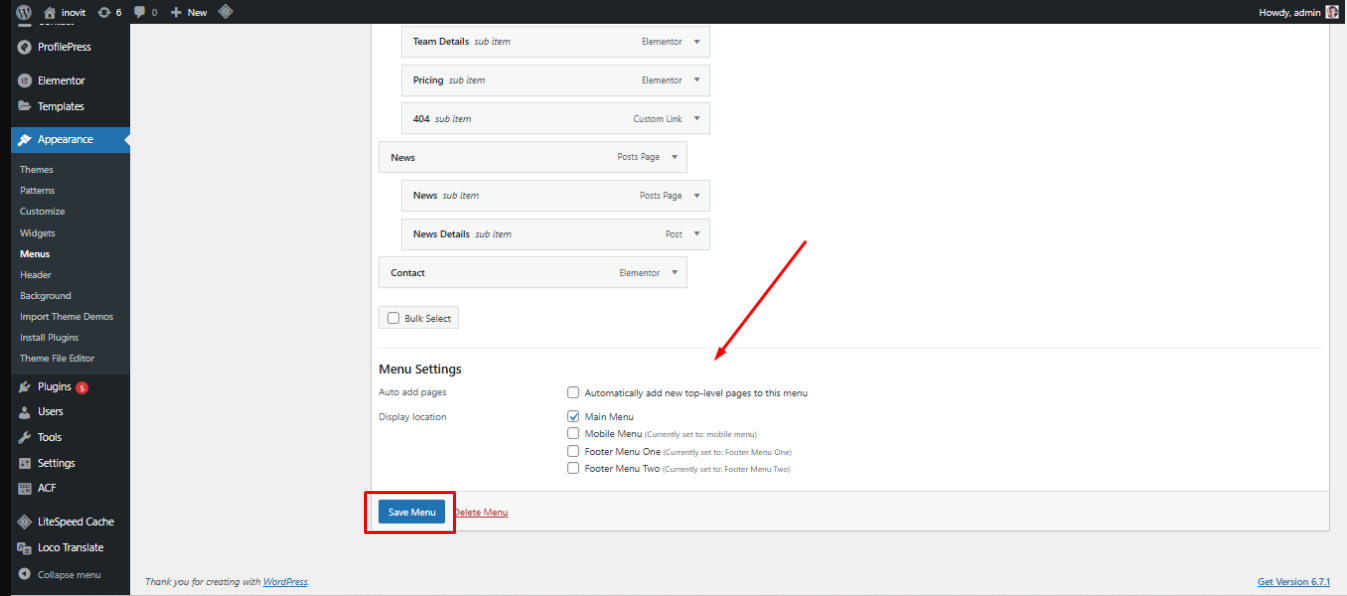
It has header menu, mobile menu and two footer menus. Create Menus > Manage locations > select menu and save :

8.2.1

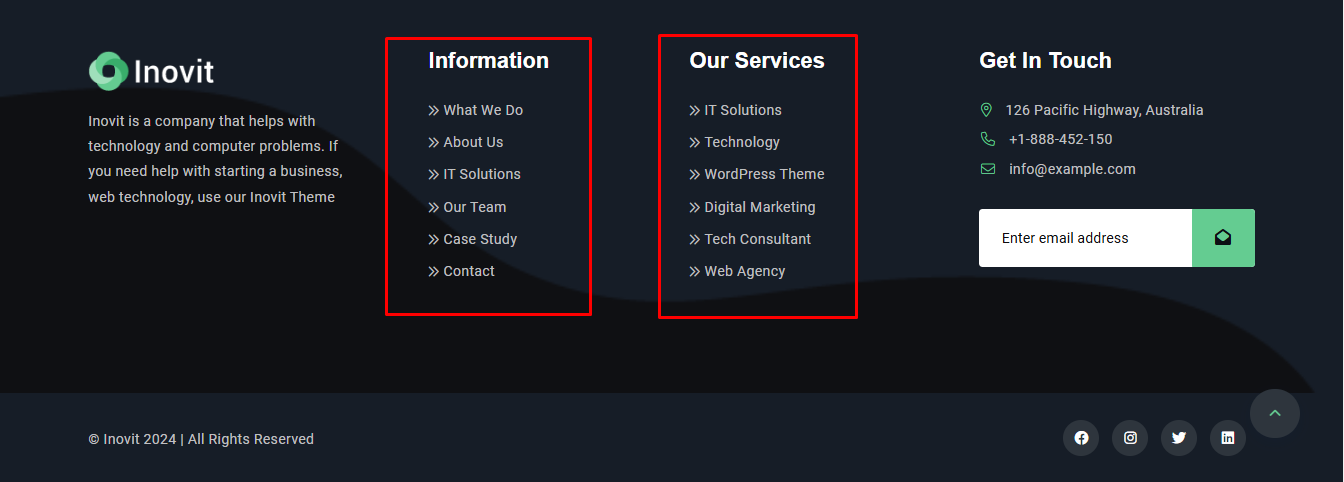
It has footer menus too that you should remember :

8.2.1

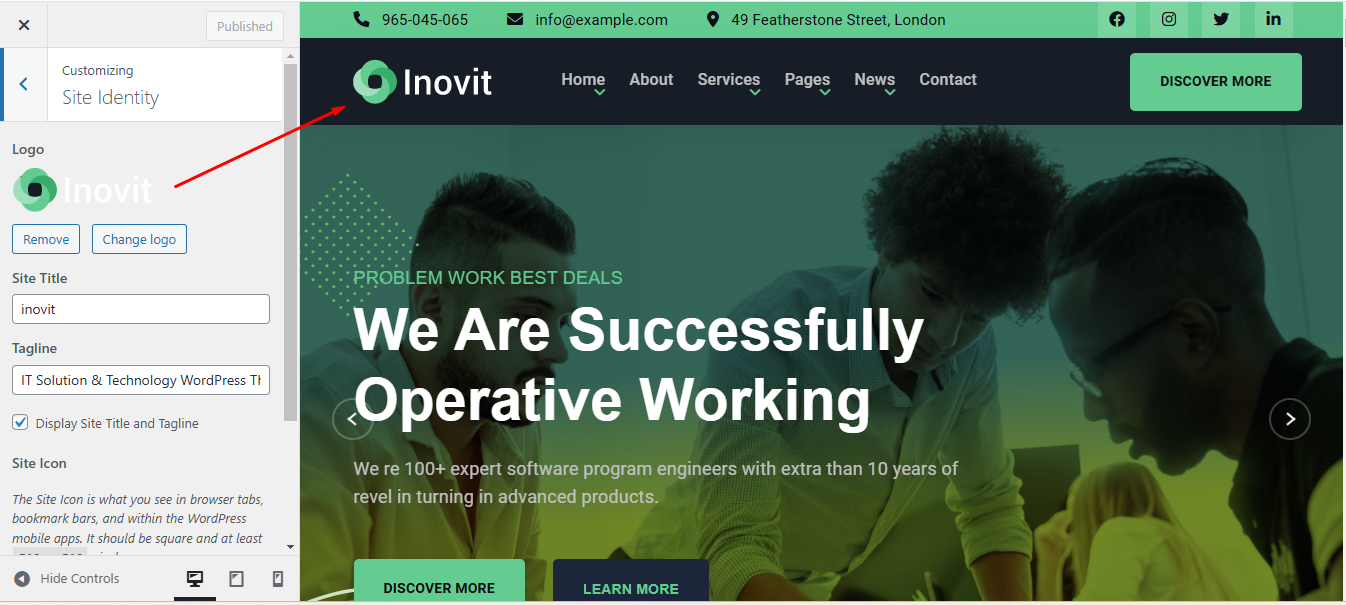
Change Site Title and Favicon Basic Site Setting

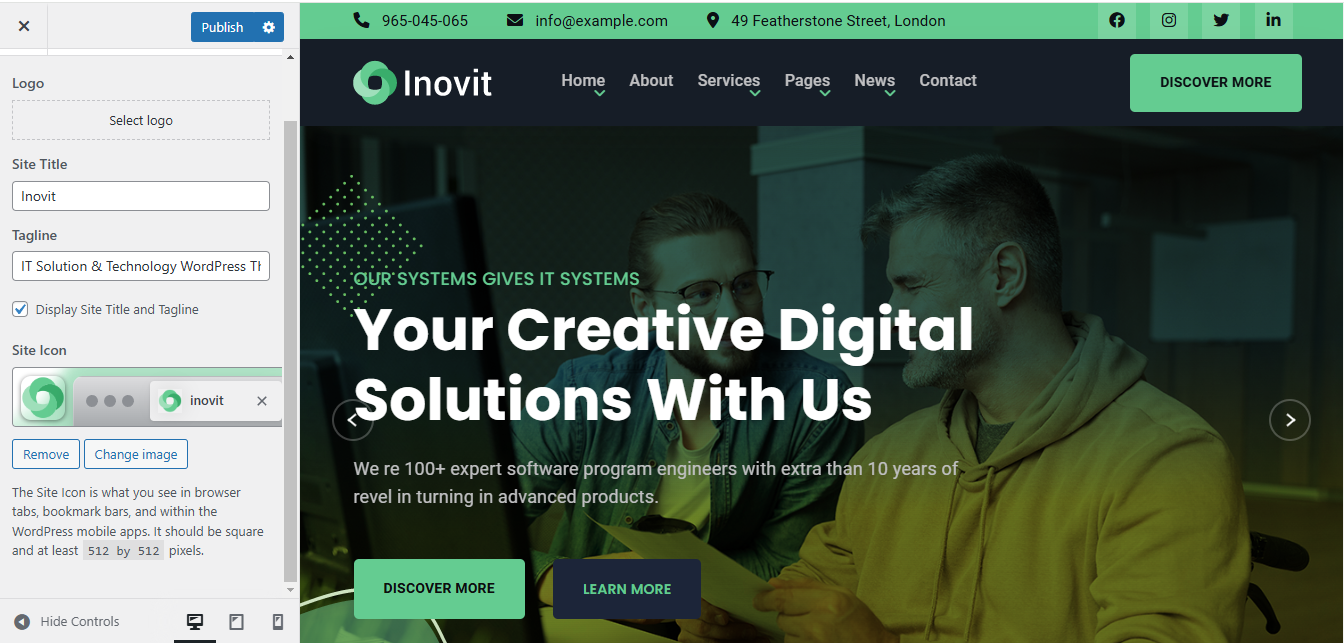
To change your Site title and Favicon login to wp-admin and navigate to Dashboard Appearance Customize Site Identity and follow the following steps:

5

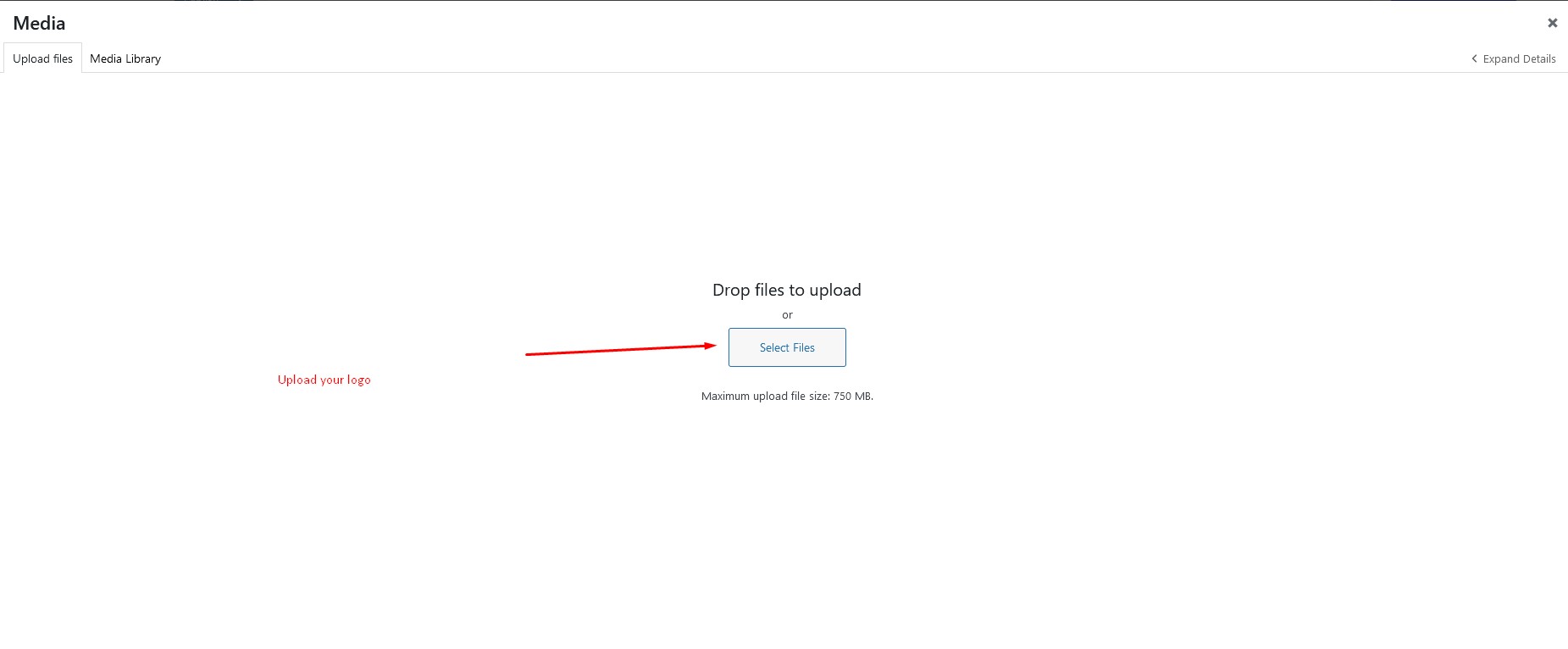
Change Header Logo

To change the site logo login to your wp-admin and navigate to Dashboard Appearance Customize Inovit Customizer Site Identity and follow the following steps:

7.1.1 7.1.2

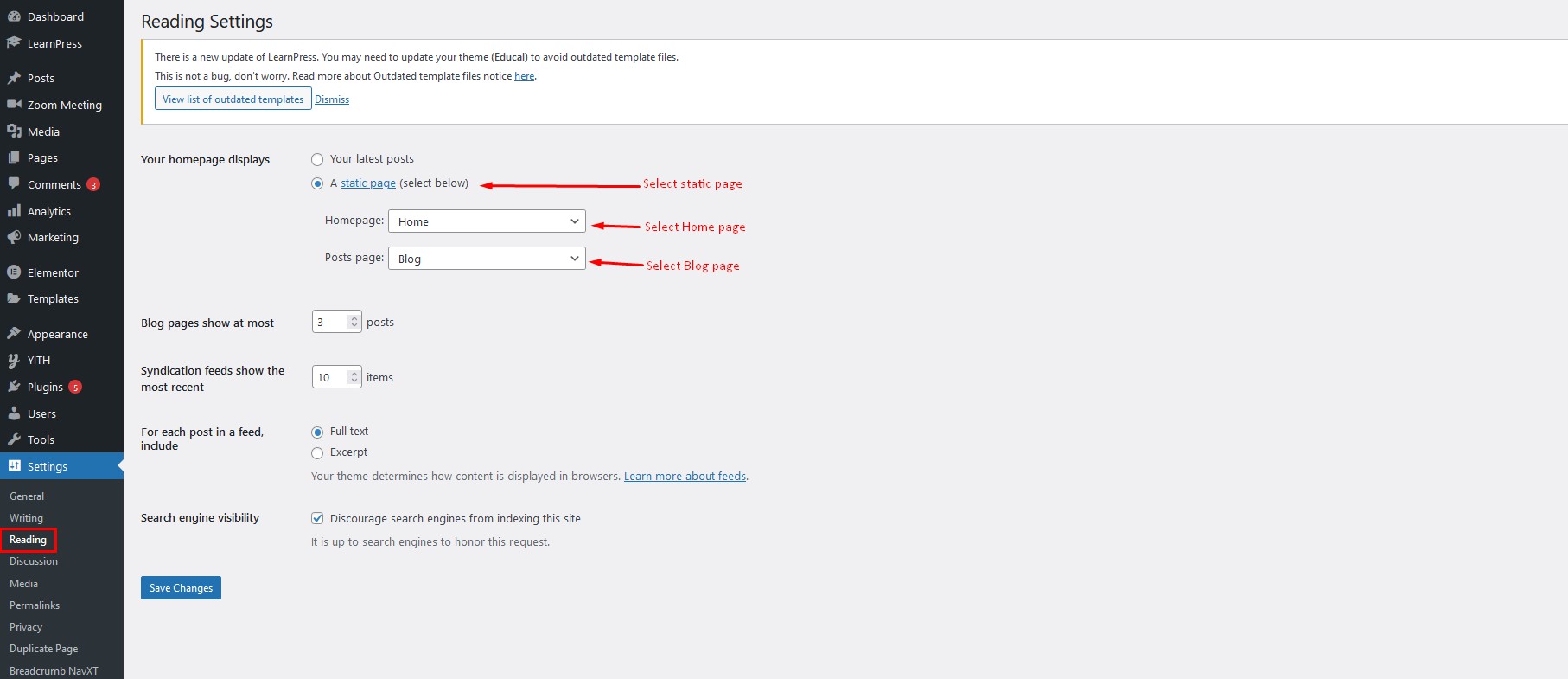
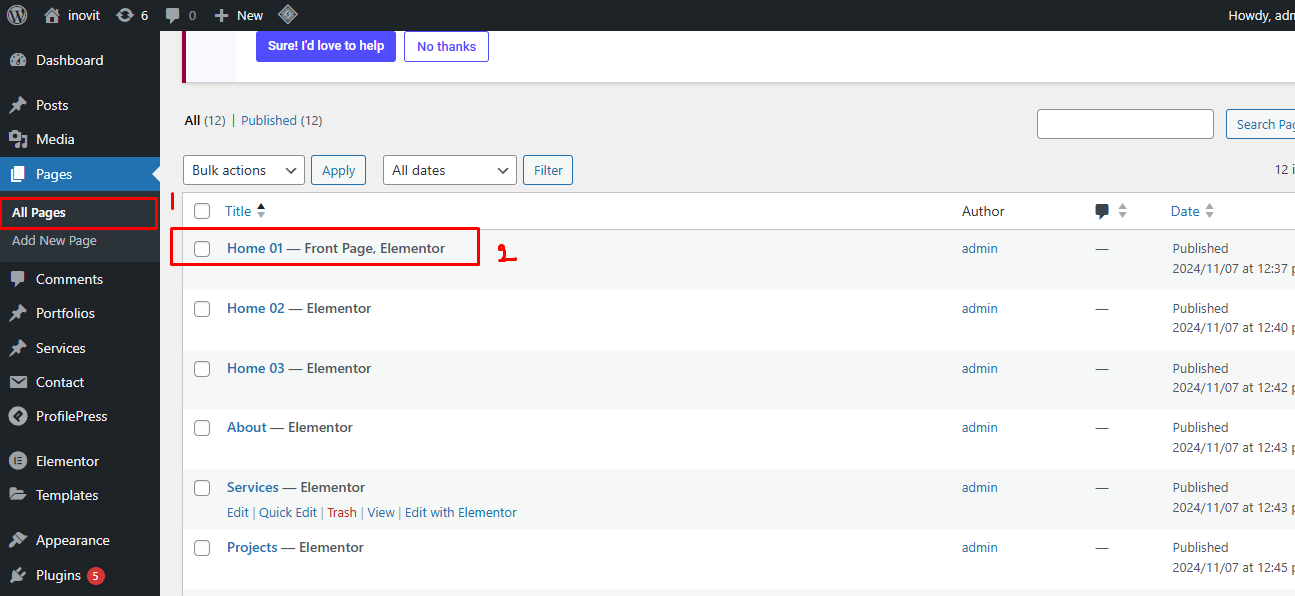
Set Home and Blog Page

To set the home and blog page, login to wp-admin and go to Dashboard Settings Reading and follow the following steps:

8.2

Page Options

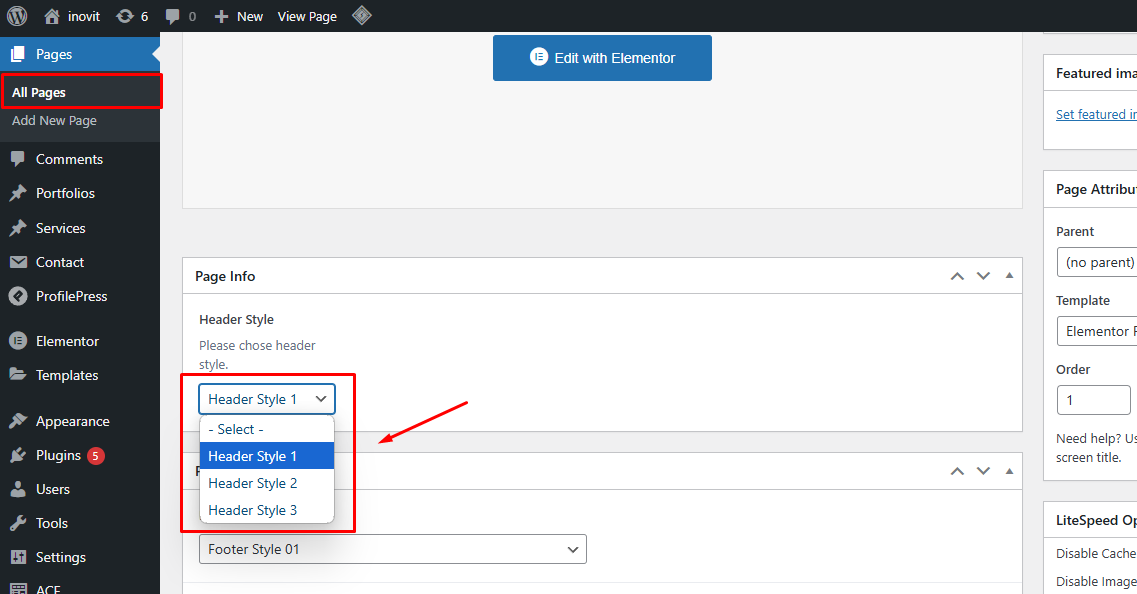
Header

To change header style navigate to Dashboard All Pages Click Any Page and follow the following steps:

11

To change header style navigate to Any Page Scroll Down Header of 3 and follow the following steps:

11

Header Style 1

11

Header Style 2

11

Header Style 3

11

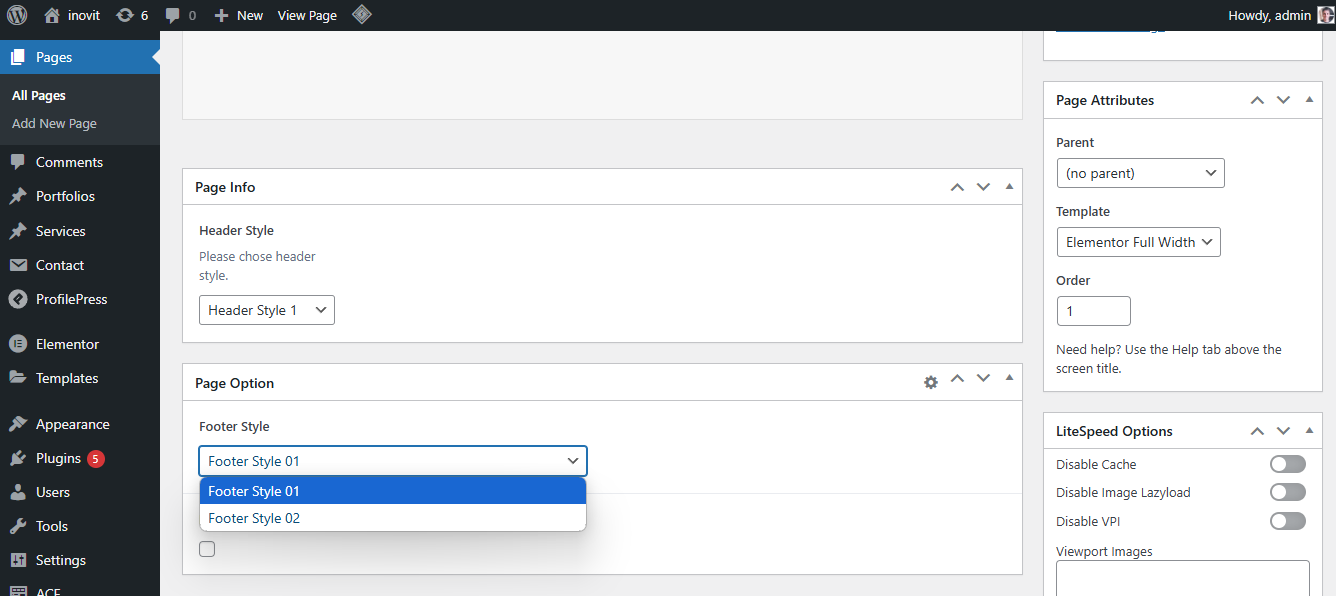
Footer

To change footer style same process navigate to Dashboard All Pages Click Any Page and follow the following steps:

11

To change footer style navigate to Any Page Scroll Down Footer of 2 and follow the following steps:

11

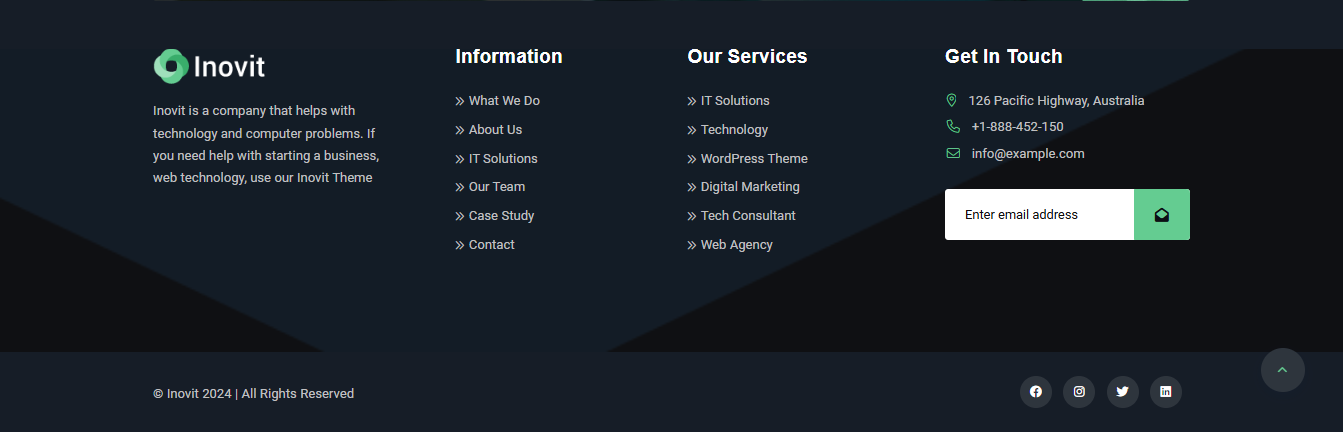
Footer Style 01

11

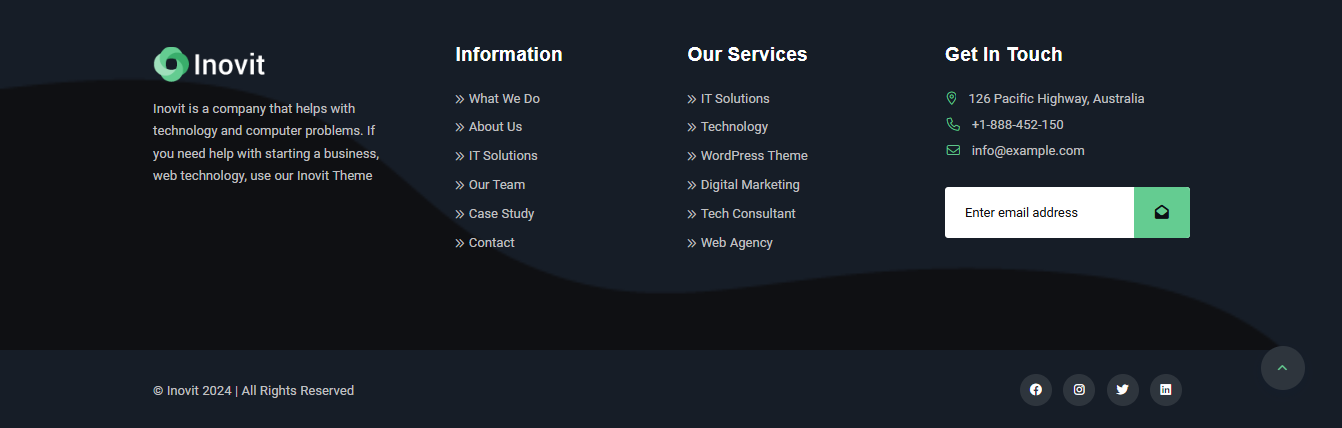
Footer Style 02

11

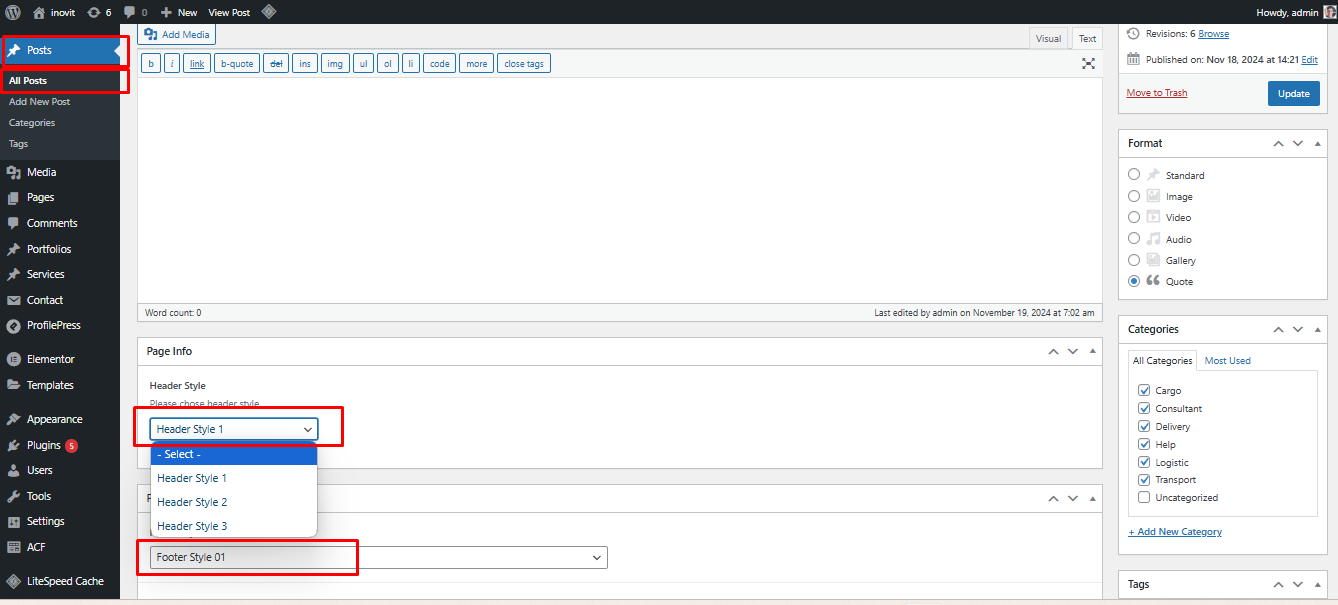
For Post will be same. To change header style/footer style navigate to Any Post Scroll Down Header of 3 Footer of 2 and follow the following steps:

11

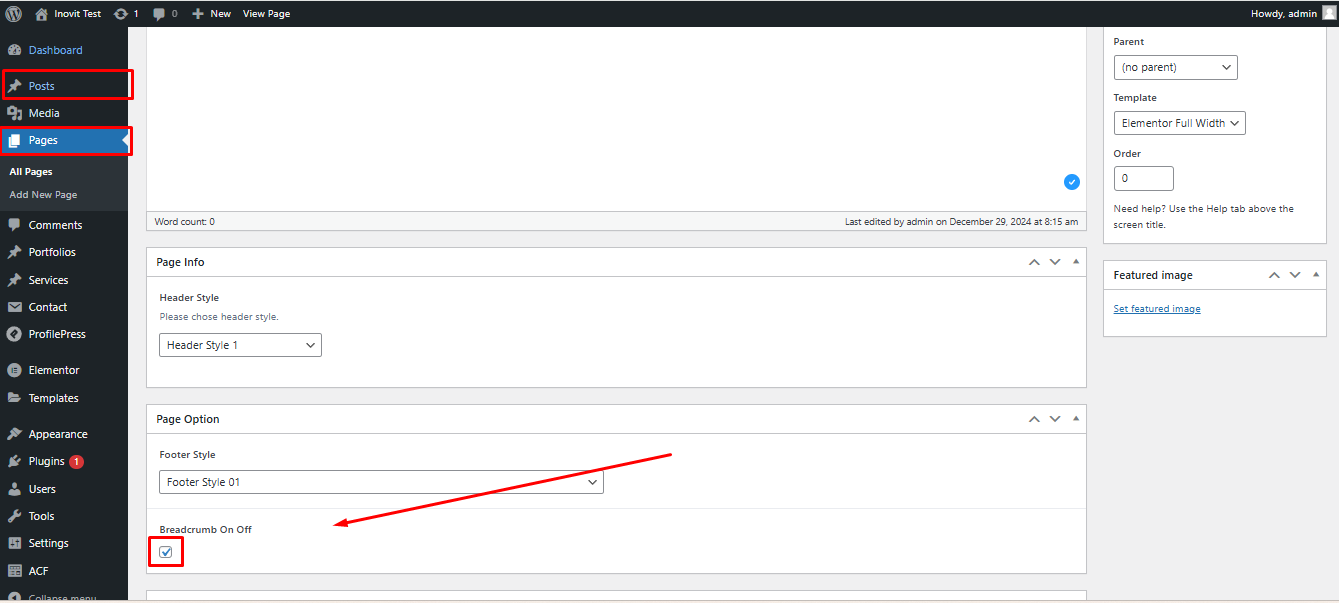
To on/of breadcrumb navigate to Any Post/page Scroll Down Breadcrumb On Off Checkbox and follow the following steps:

11
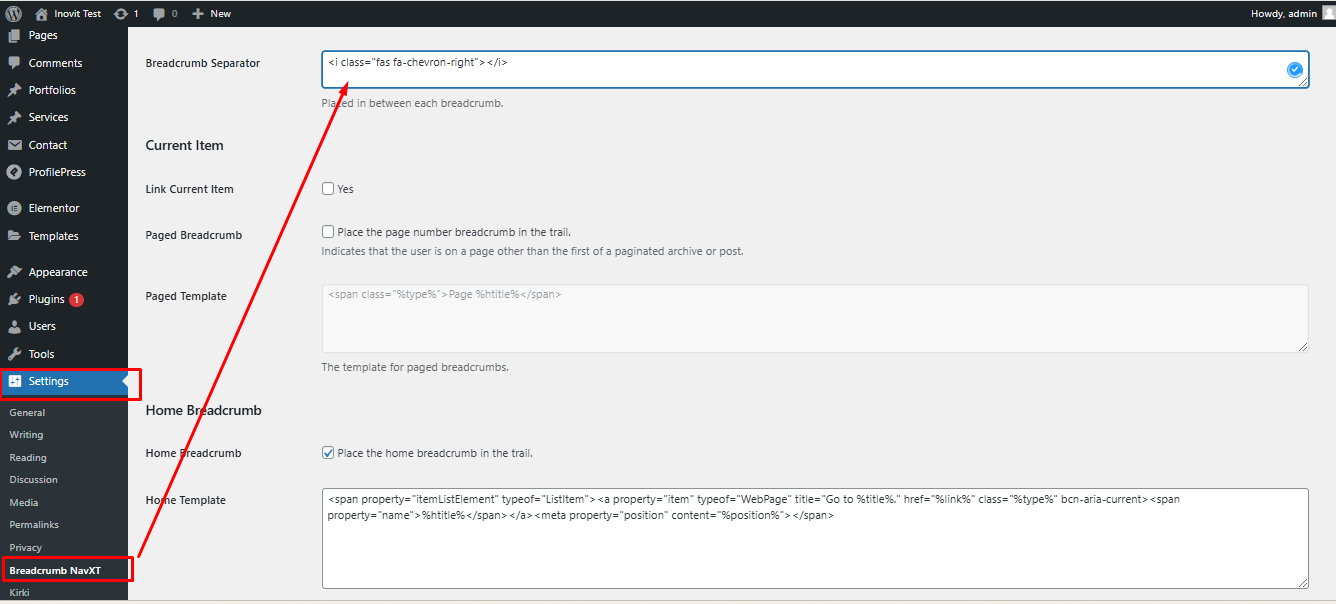
Insert Breadcrumb seperator icon code. : <i class="fas fa-chevron-right"></i> Then come scroll down and click Save Changes button
It should then look like this.

Theme Options

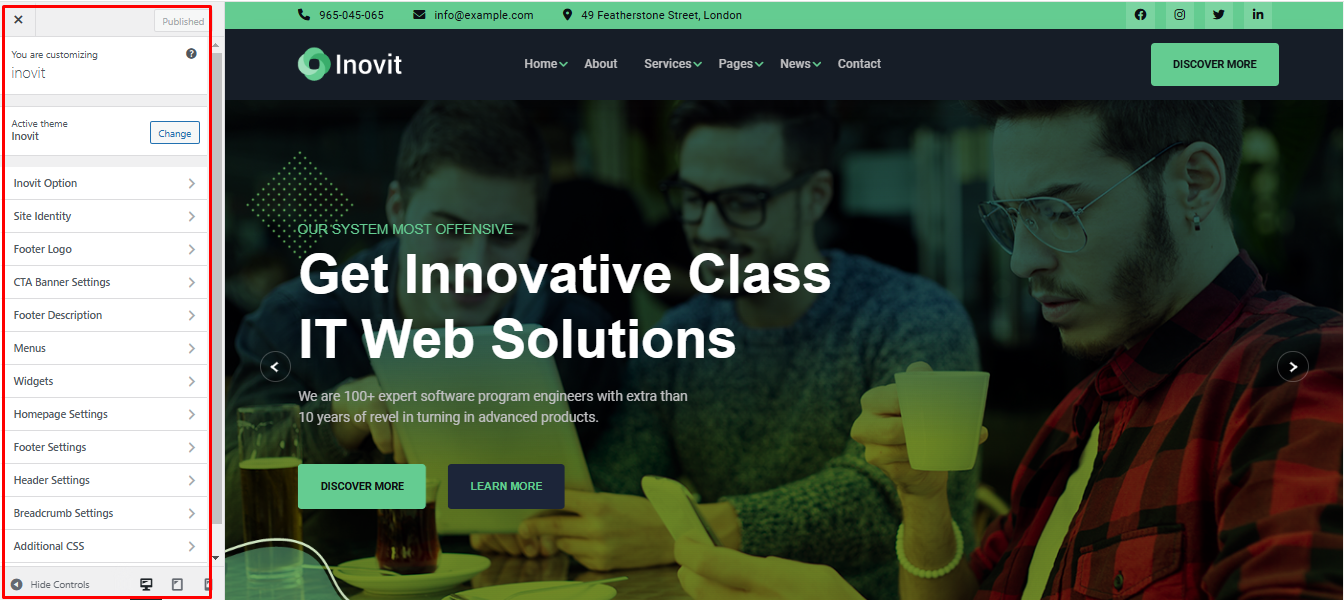
You should have created page for customizer works. To change some of the contents for this theme navigate to Dashboard Appearance Customize Inovit and follow the following steps:

11

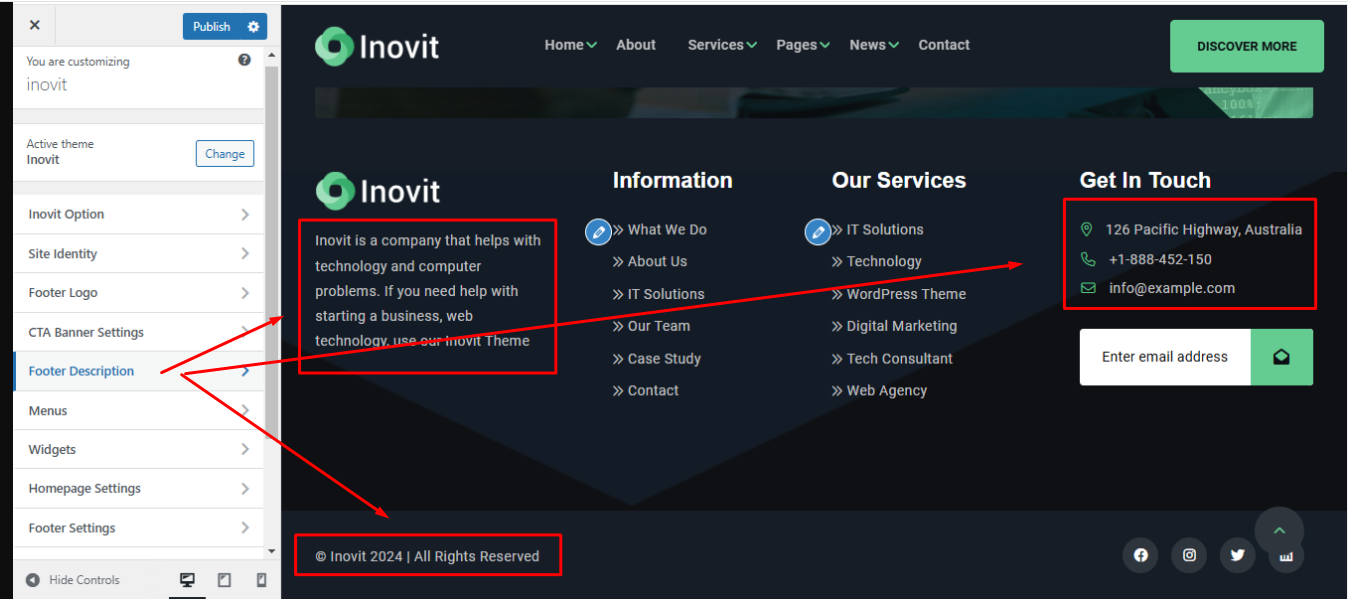
To change footer content by below the mentioned image navigate to Dashboard Appearance Customize Footer Description Then Edit and follow the following steps:

11

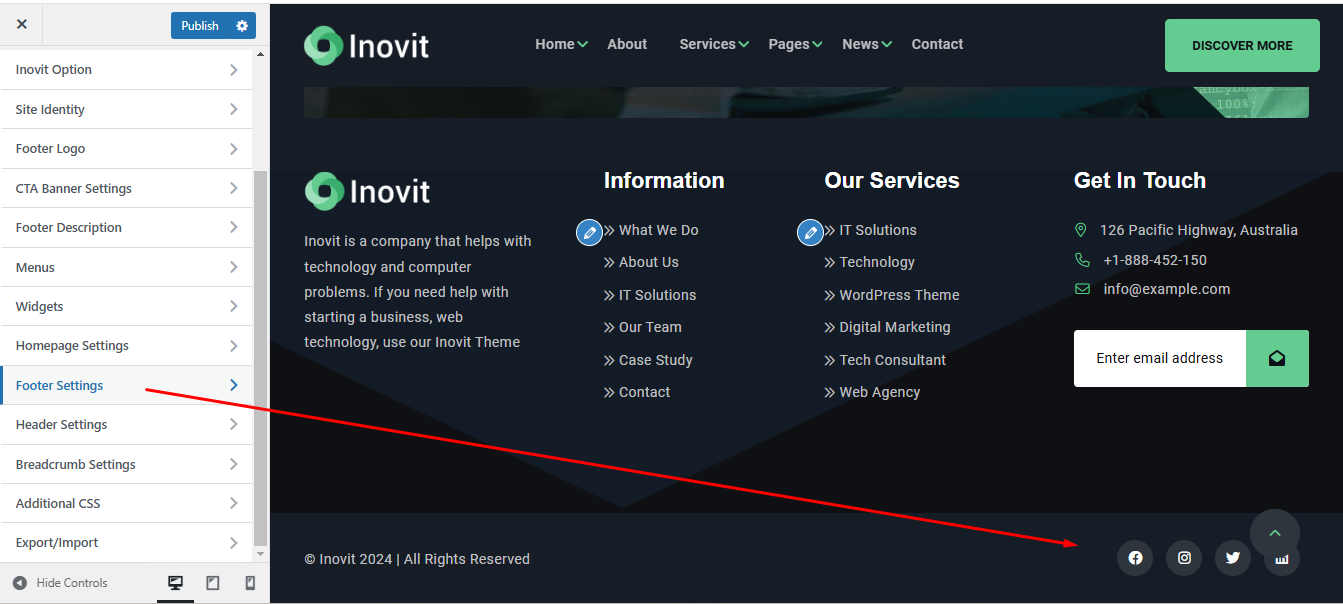
To change footer social navigate to Dashboard Appearance Customize Footer Settings Then Edit and follow the following steps:

11

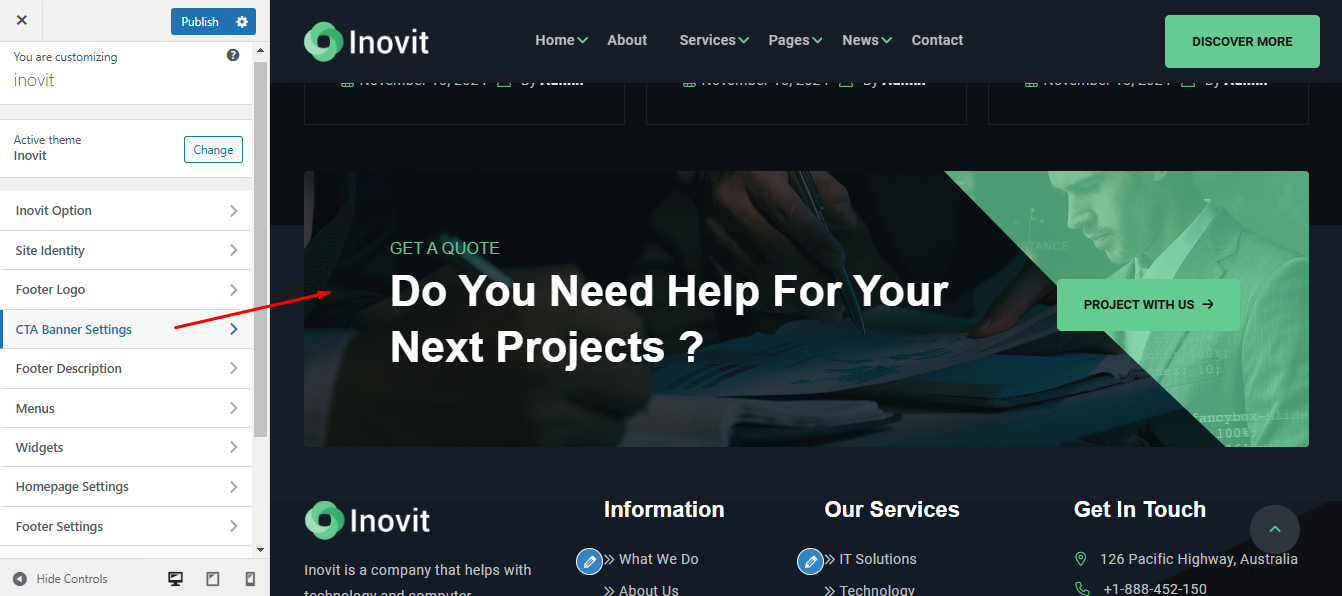
To change cta content navigate to Dashboard Appearance Customize CTA Banner Settings Then Edit and follow the following steps:

11

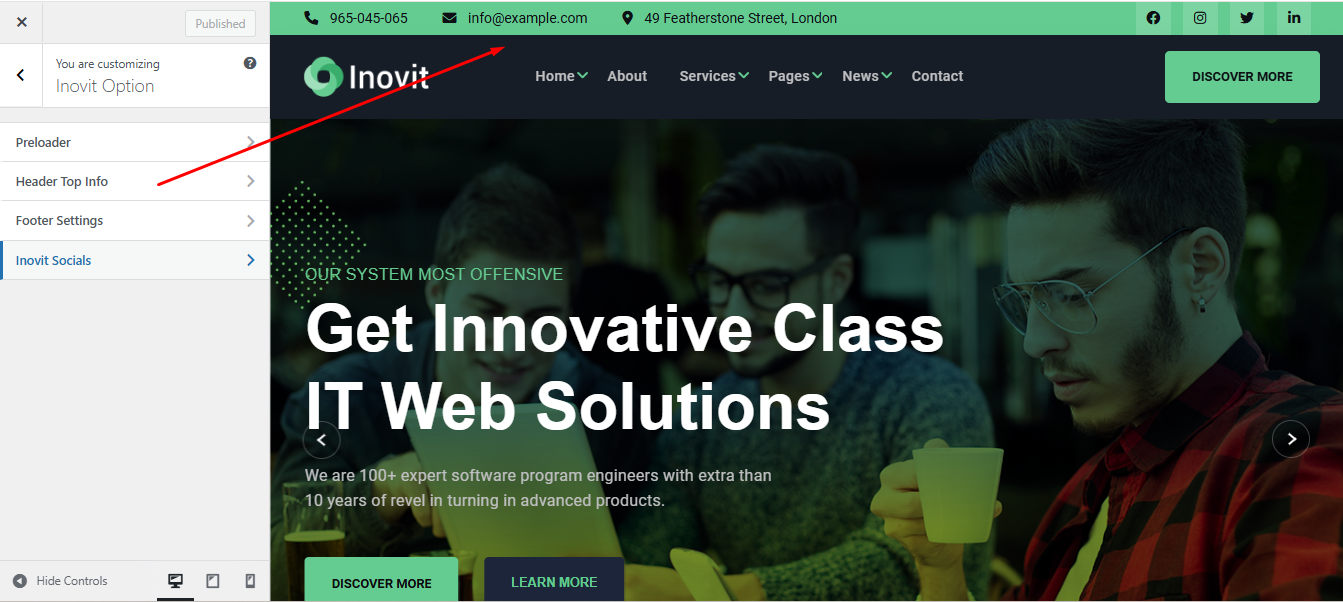
To change header top content navigate to Dashboard Appearance Customize Inovit Option Header Top Info Then Edit and follow the following steps:

11

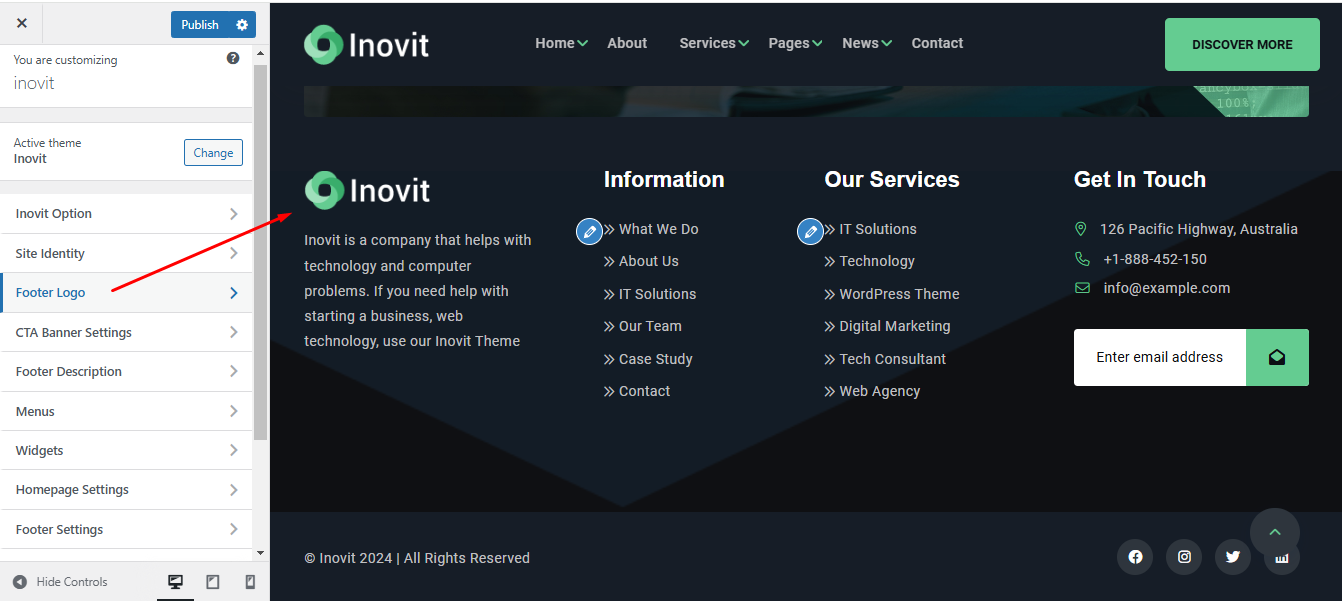
To change footer logo navigate to Dashboard Appearance Customize Footer Logo Then Edit and follow the following steps:

11

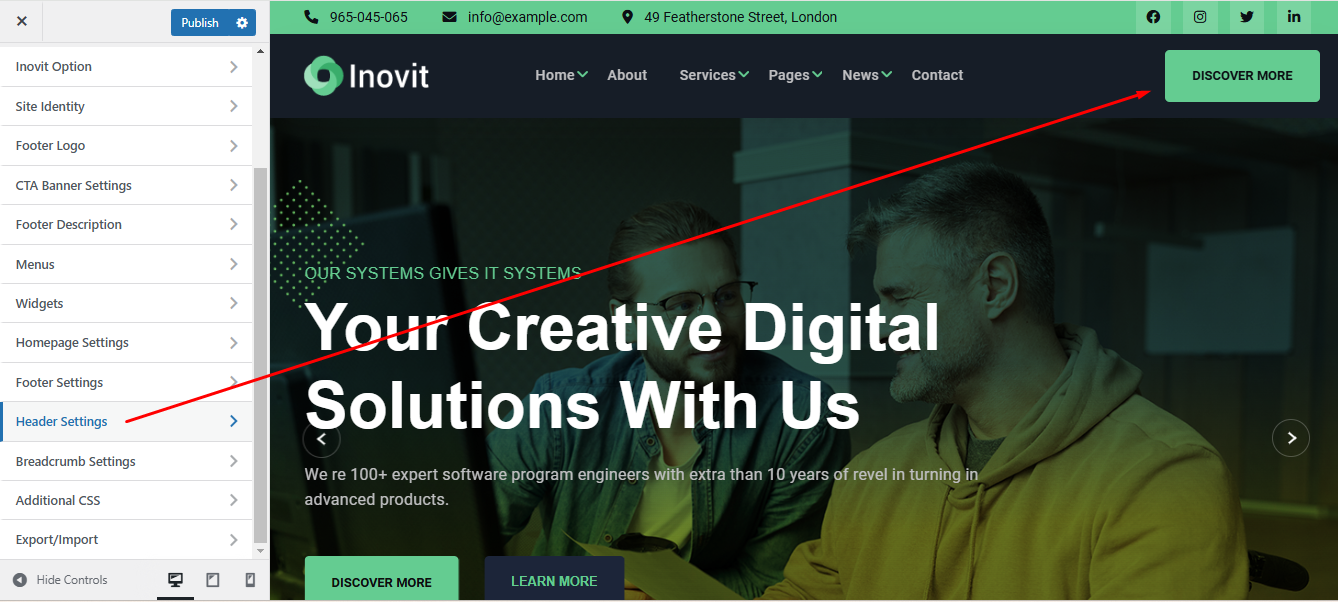
To edit header btn navigate to Dashboard Appearance Customize Header Settings Then Edit and follow the following steps:

11

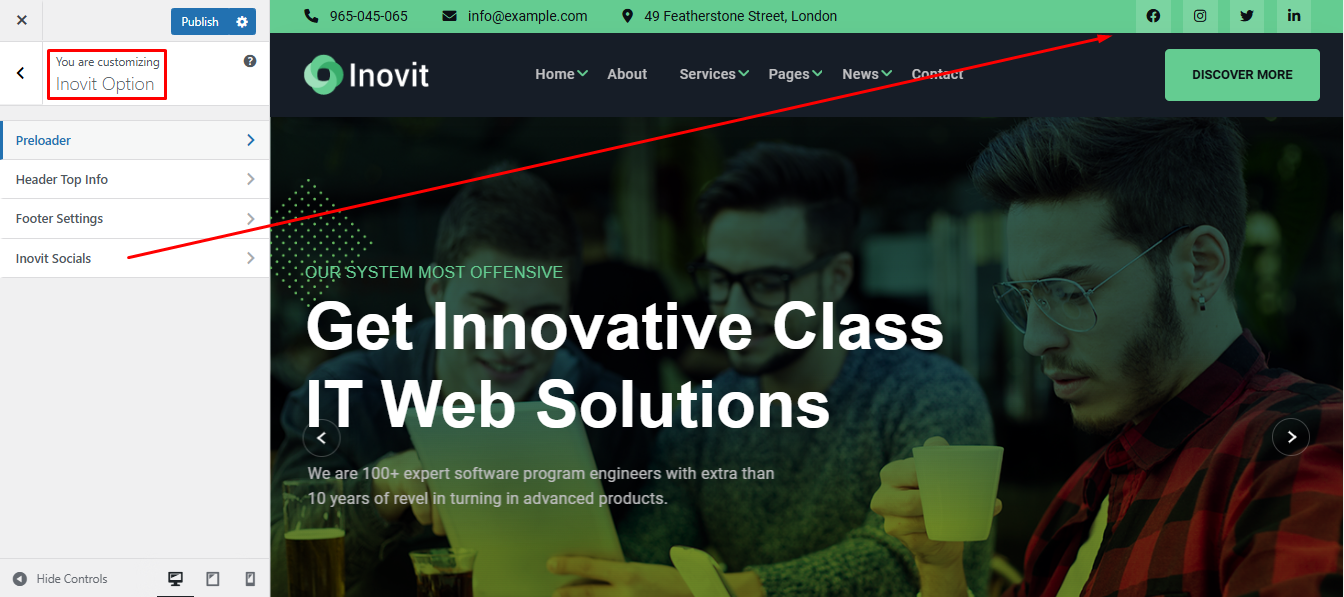
To change social address navigate to Dashboard Appearance Customize Inovit Option Inovit Socials and follow the following steps:

11

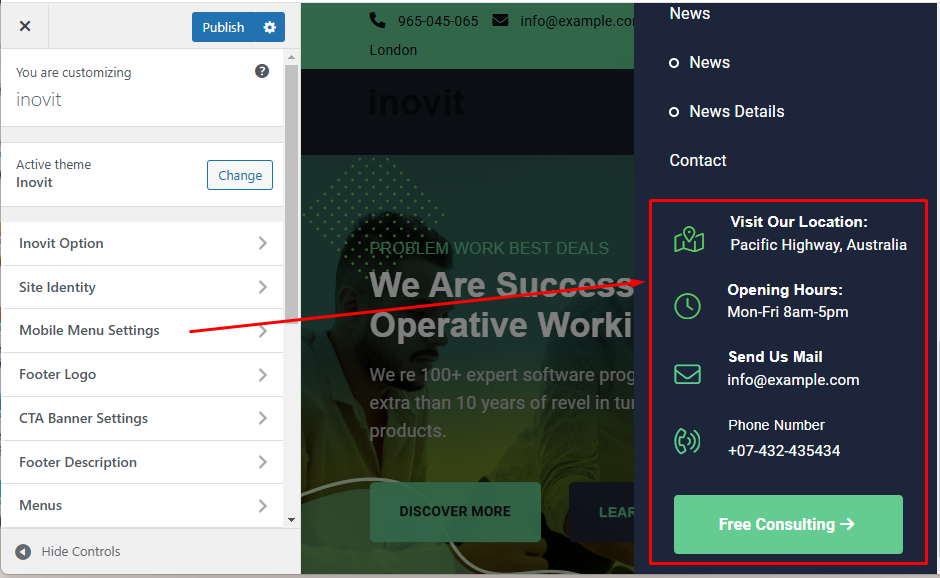
To change Mobile Side Info descriptions navigate to Dashboard Appearance Customize Mobile Menu Settings and follow the following steps:

11.2.1

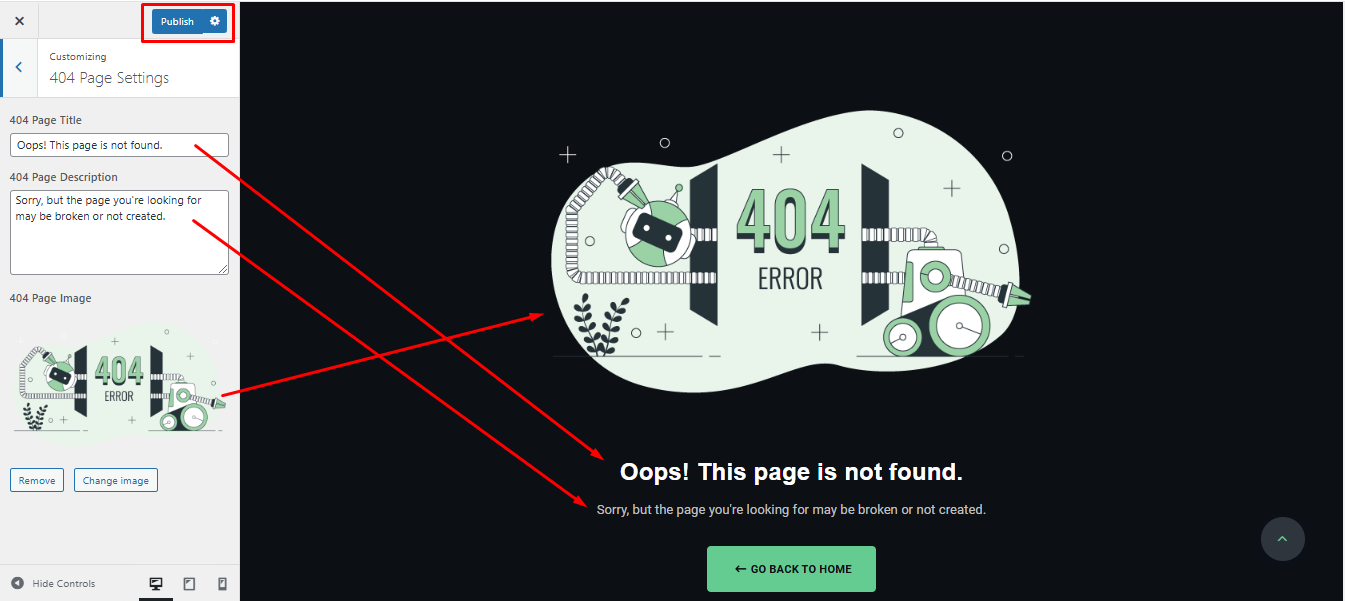
To change 404 page infos navigate to Dashboard Appearance Customize 404 page settings and follow the following steps:

11.2.1

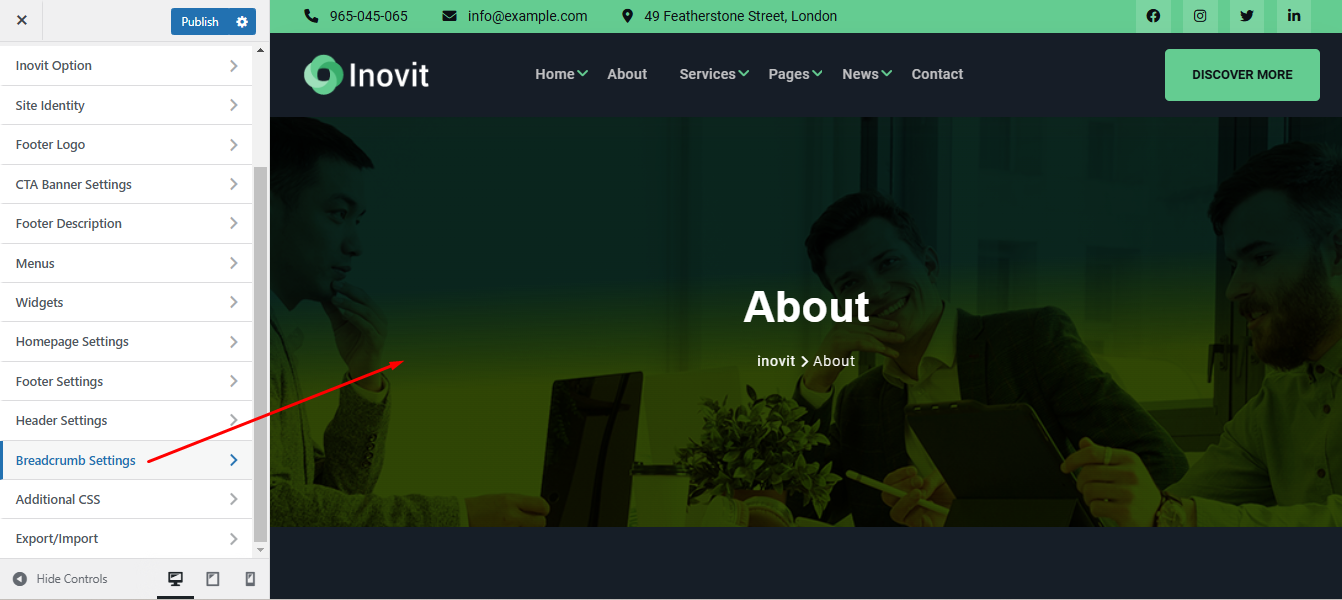
Breadcrumb Settings

To change Theme Options navigate to Dashboard Appearance Customize Breadcrumb Settings and follow the following steps:

11.5.1

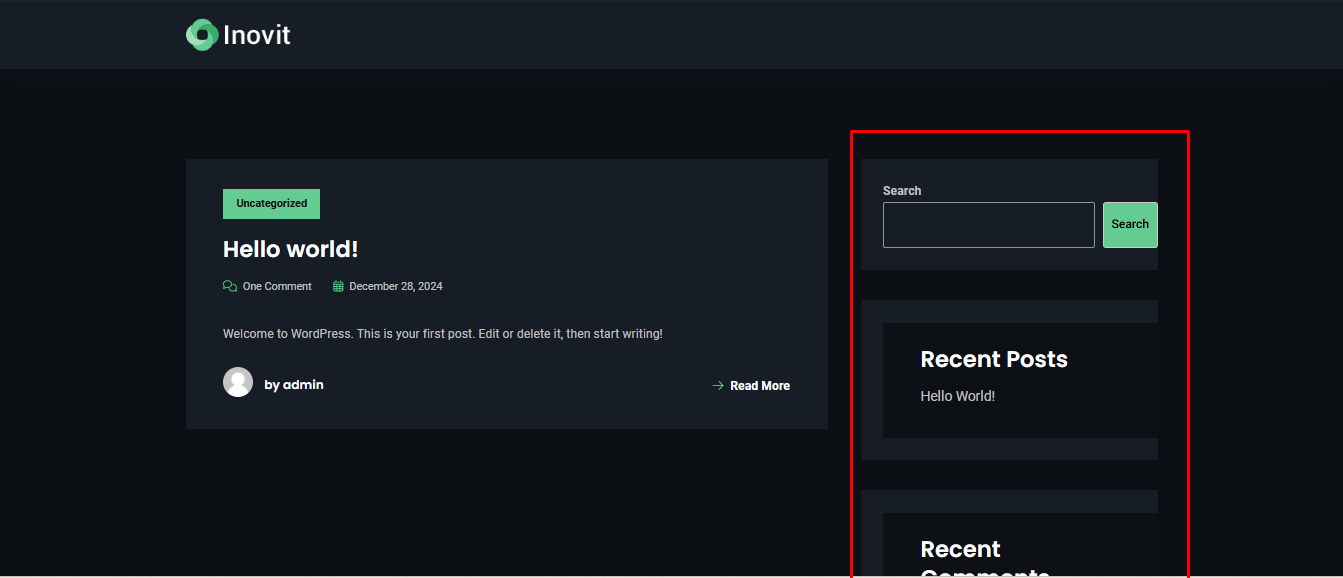
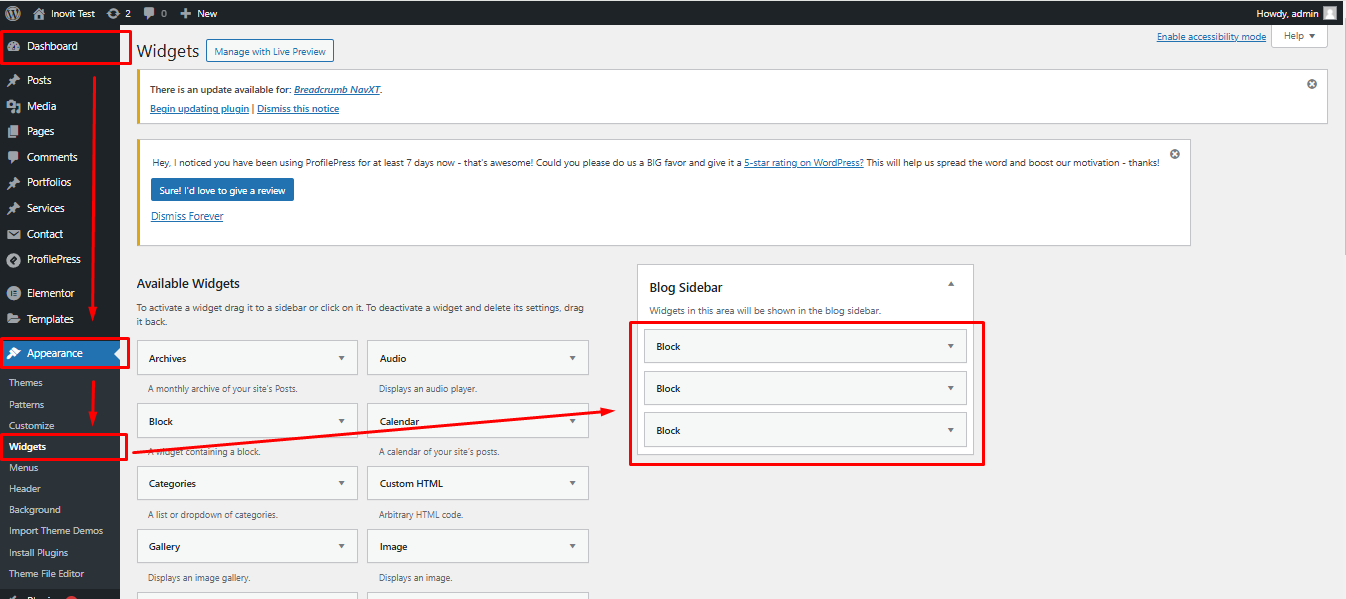
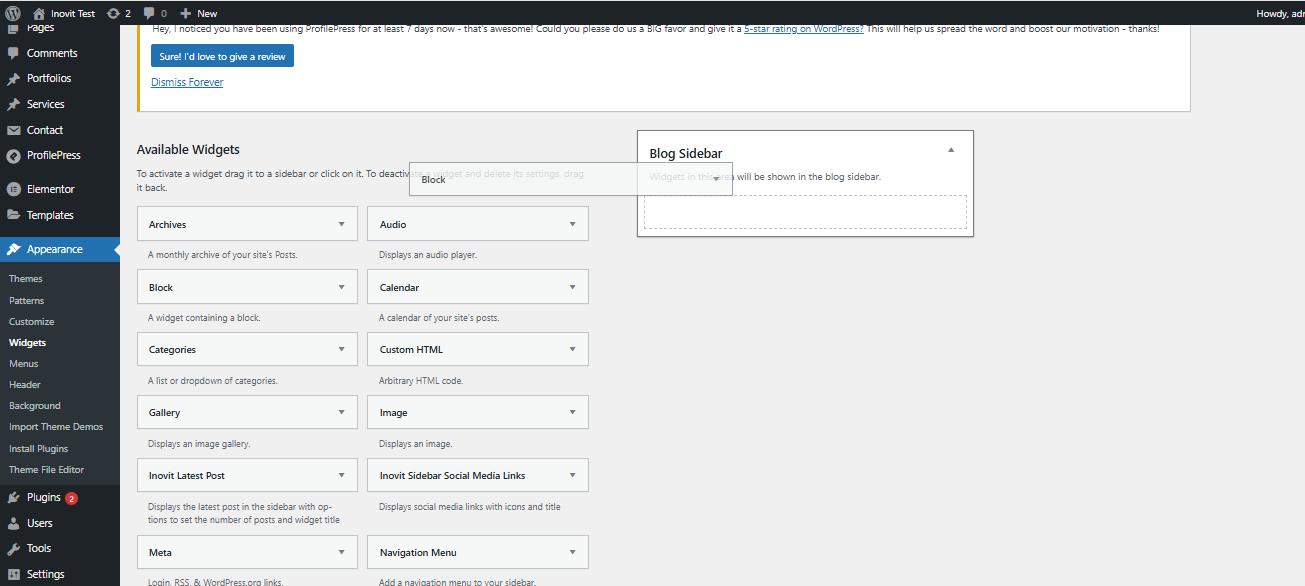
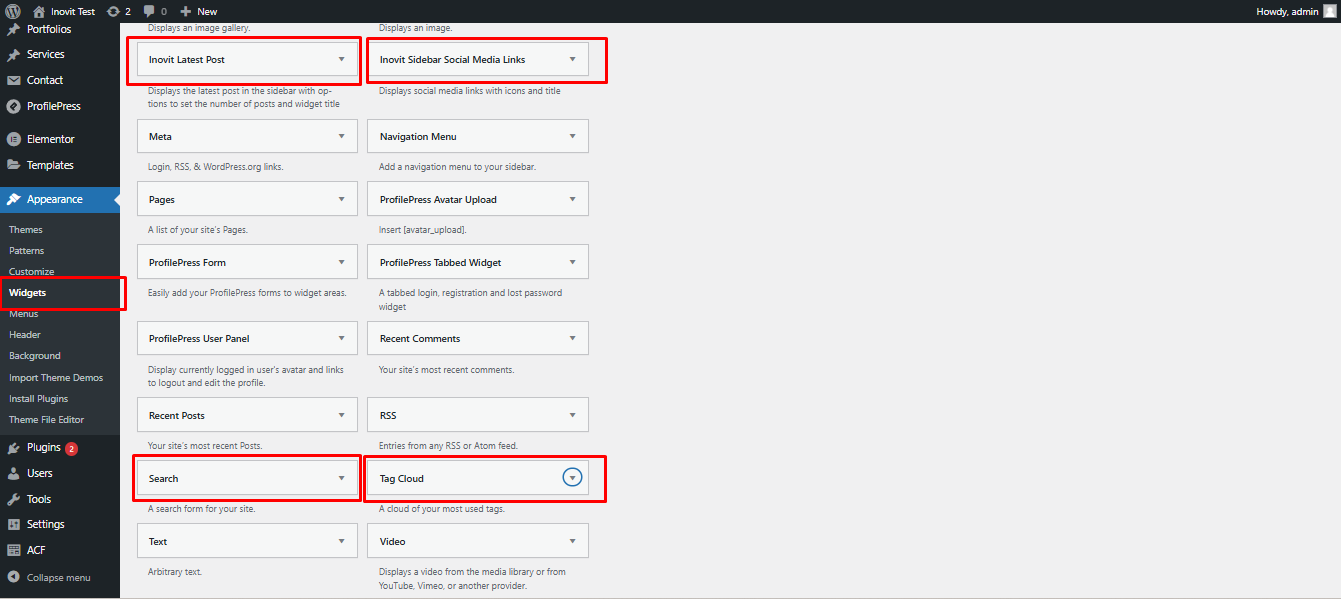
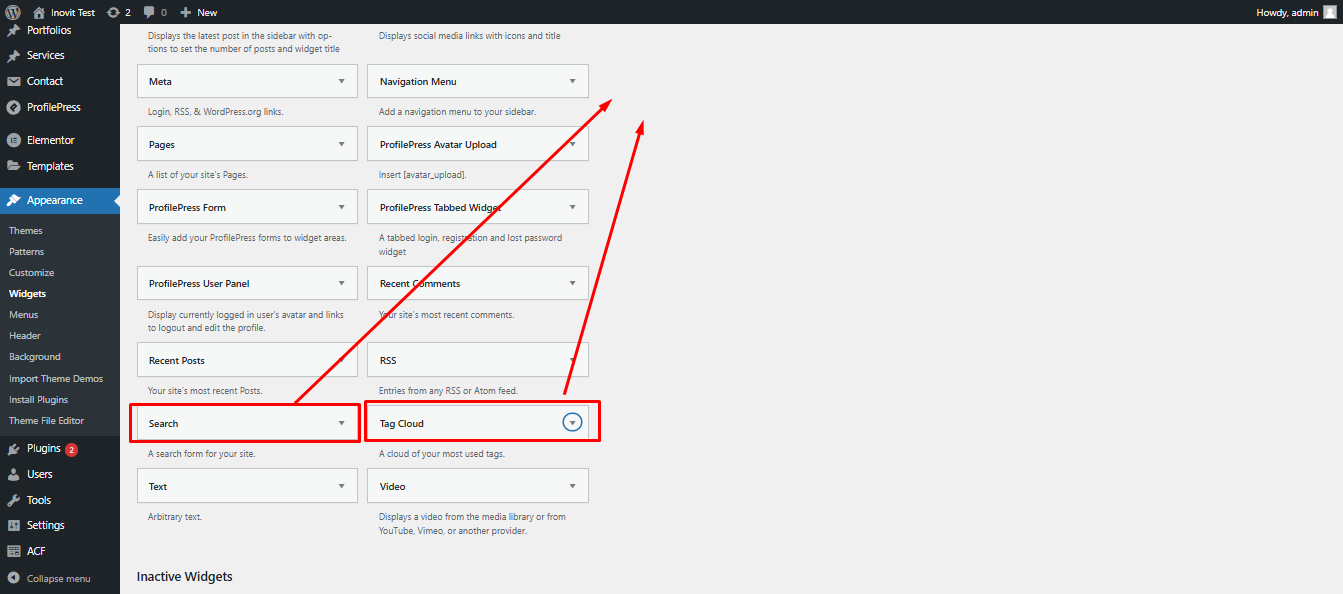
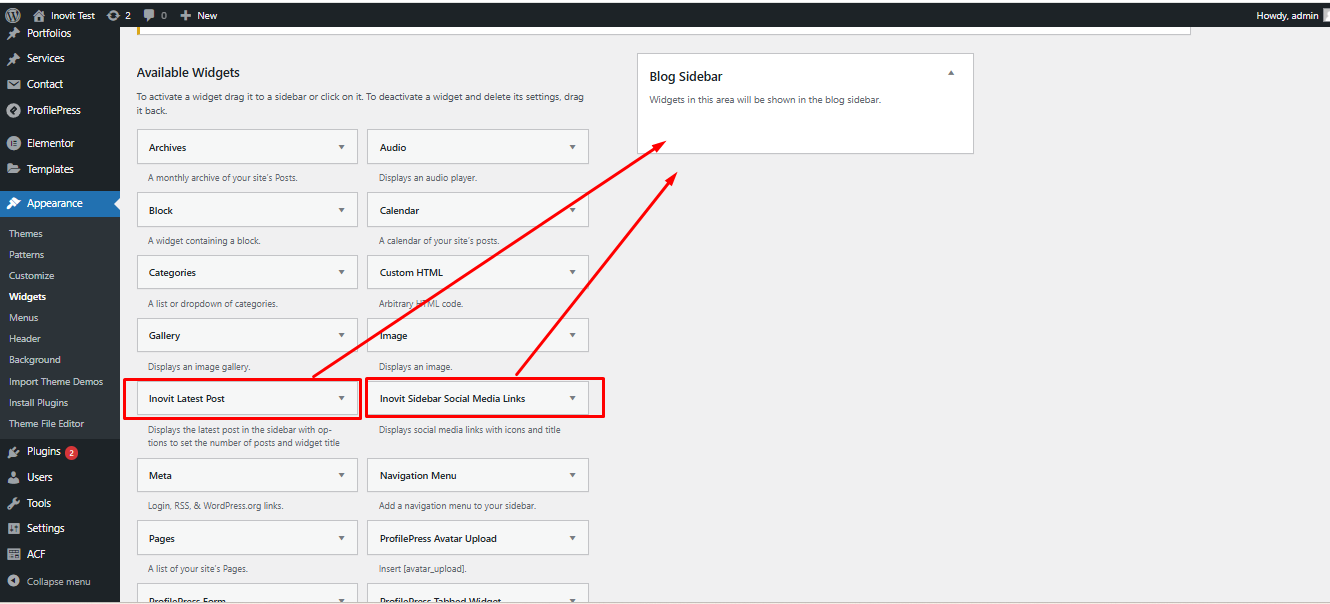
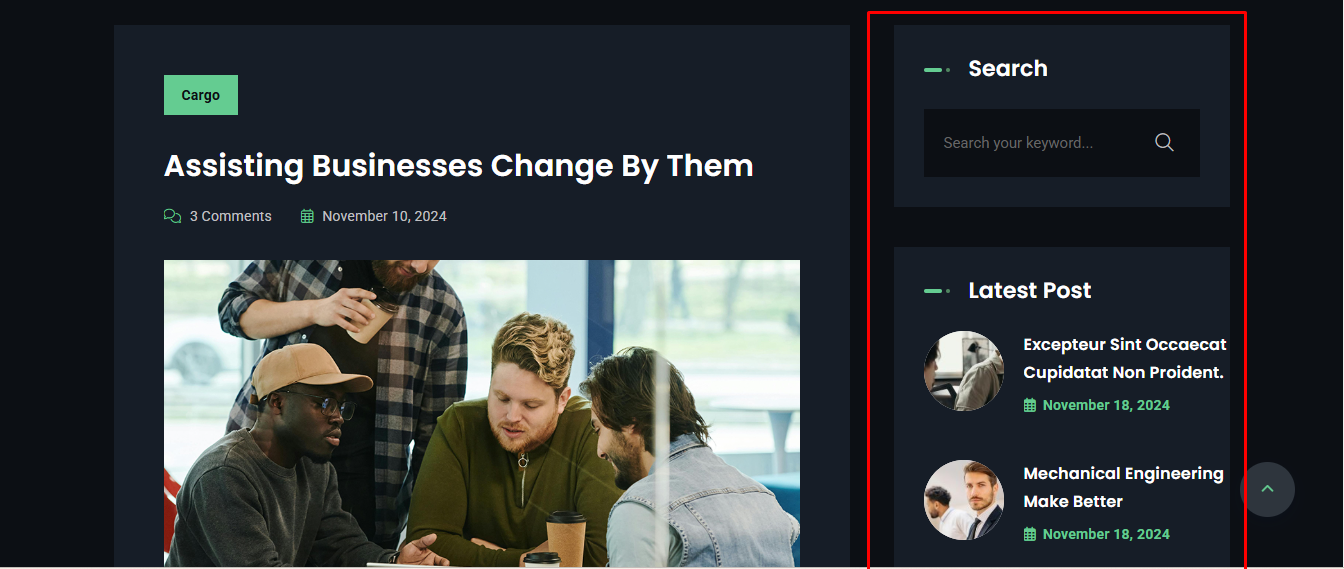
Sidebar News(Blog) Widget Settings

To change Theme Options navigate to Dashboard Appearance Widget and follow the following steps:

11.5.1
11.5.1
11.5.1
11.5.1
11.5.1
11.5.1
11.5.1
`

Portfolio Post

How can i edit postfolio post with elementor ? :

Creating a Portfolio

To create a new project do the following:

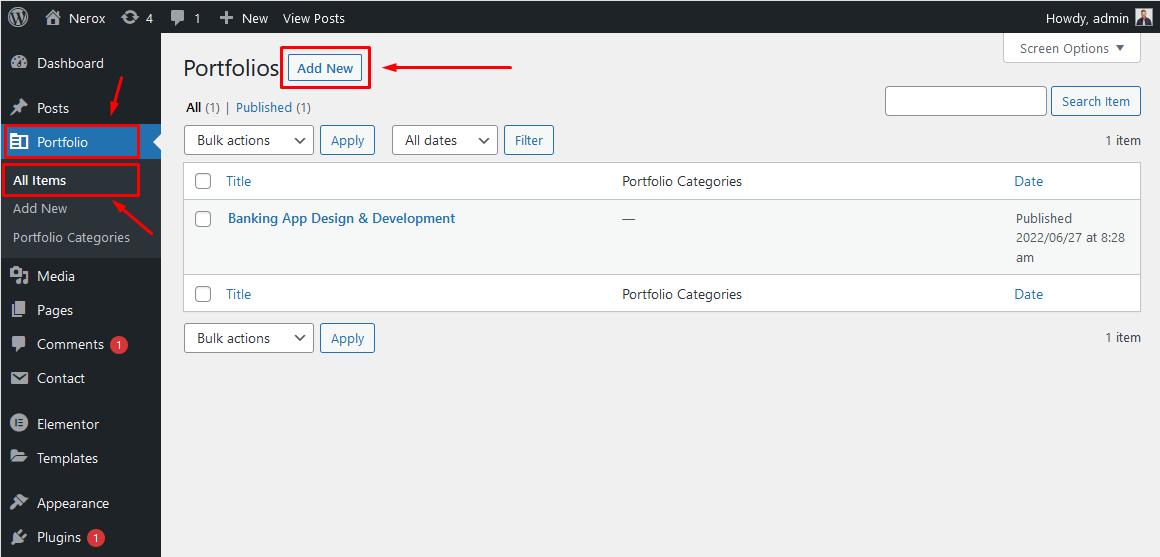
  1. From the dashboard go to Portfolio All Items Add New
  2. Add project meta and click the publish button
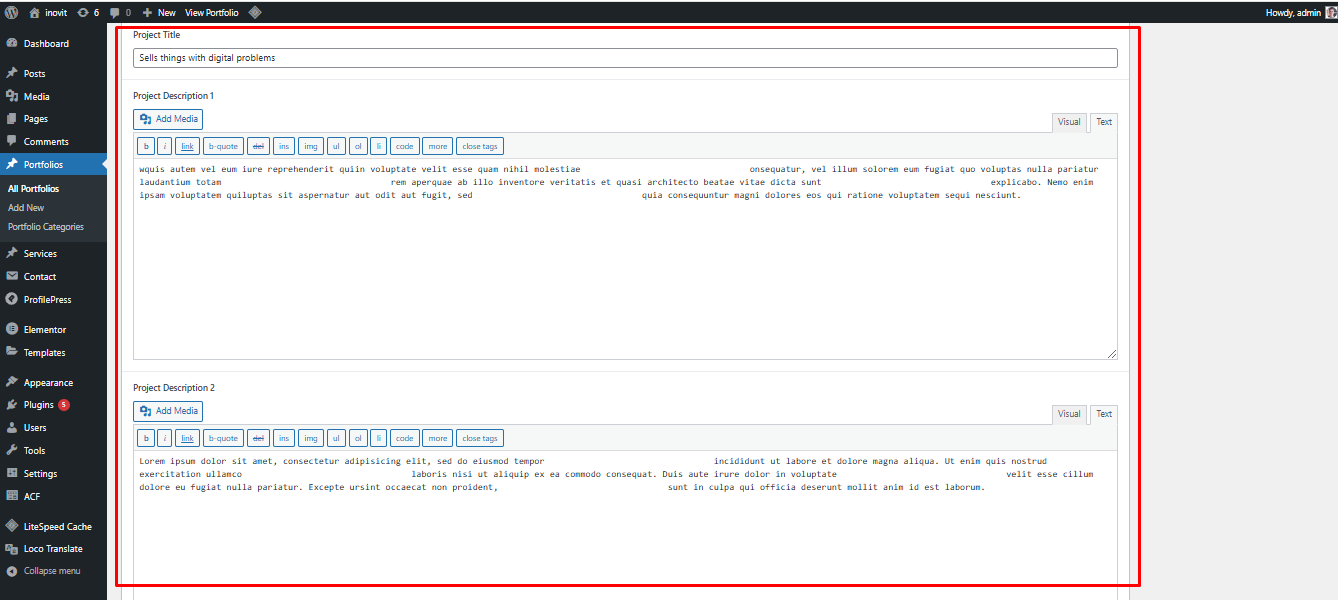
  3. Add project content
Create a portfolio
Add Content
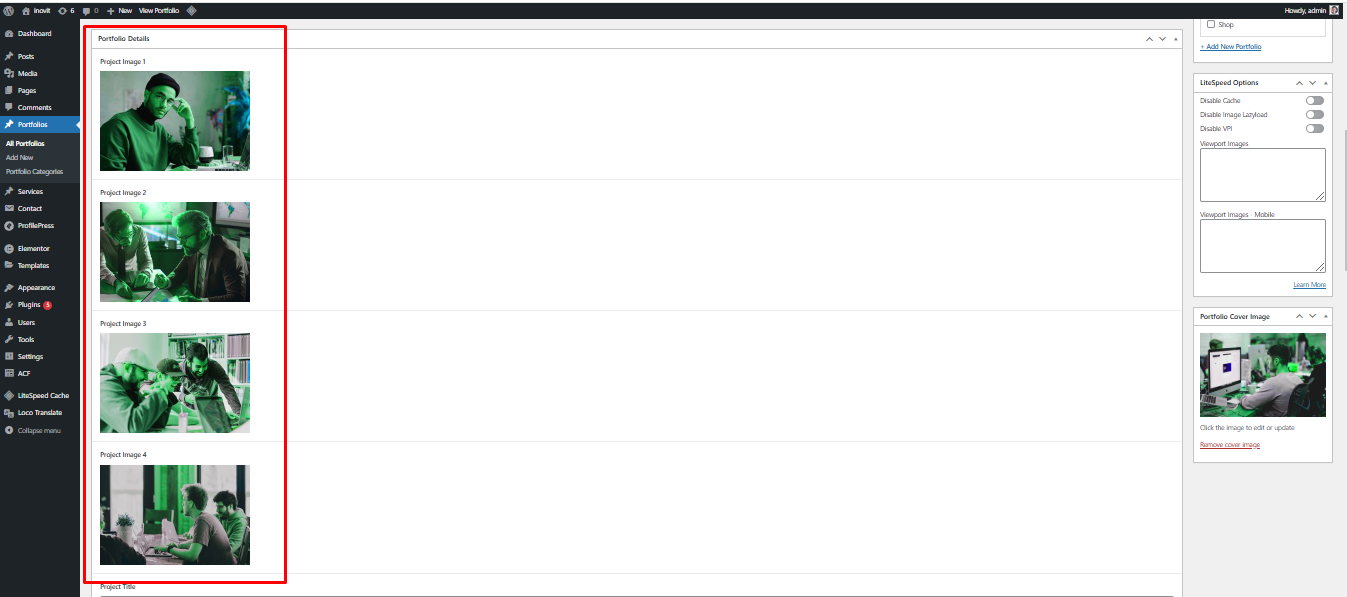
Add Portfolio Image
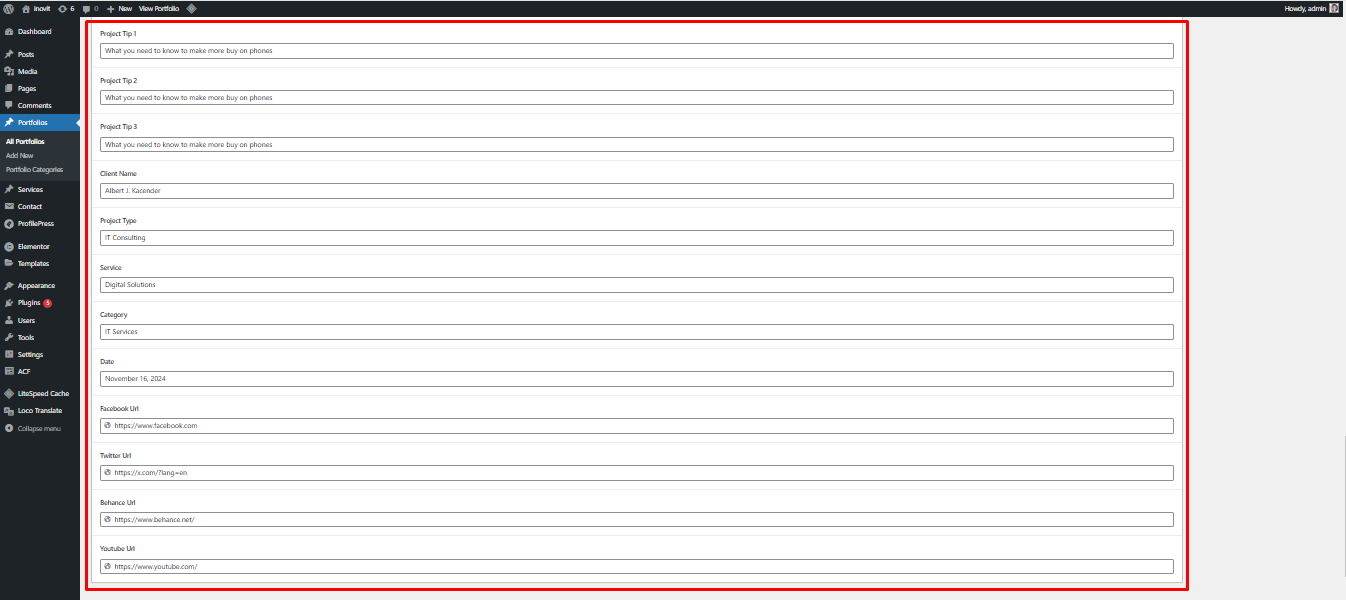
Add Project More Content

Project (Portfolio) Page

To create a page with a portfolio template and add it to your website:

  1. From the dashboard go to Pages Add New
  2. Enter your portfolio page title
  3. Click the Publish Button
  4. Select "Elementor Full Wdth" Page Template
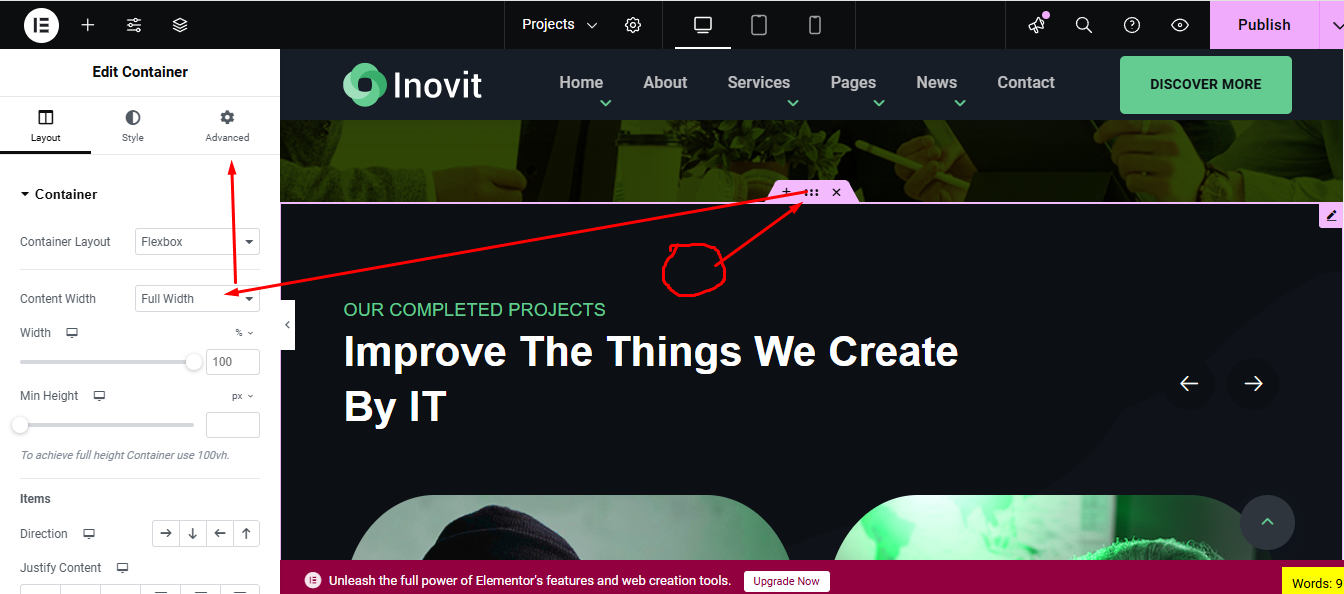
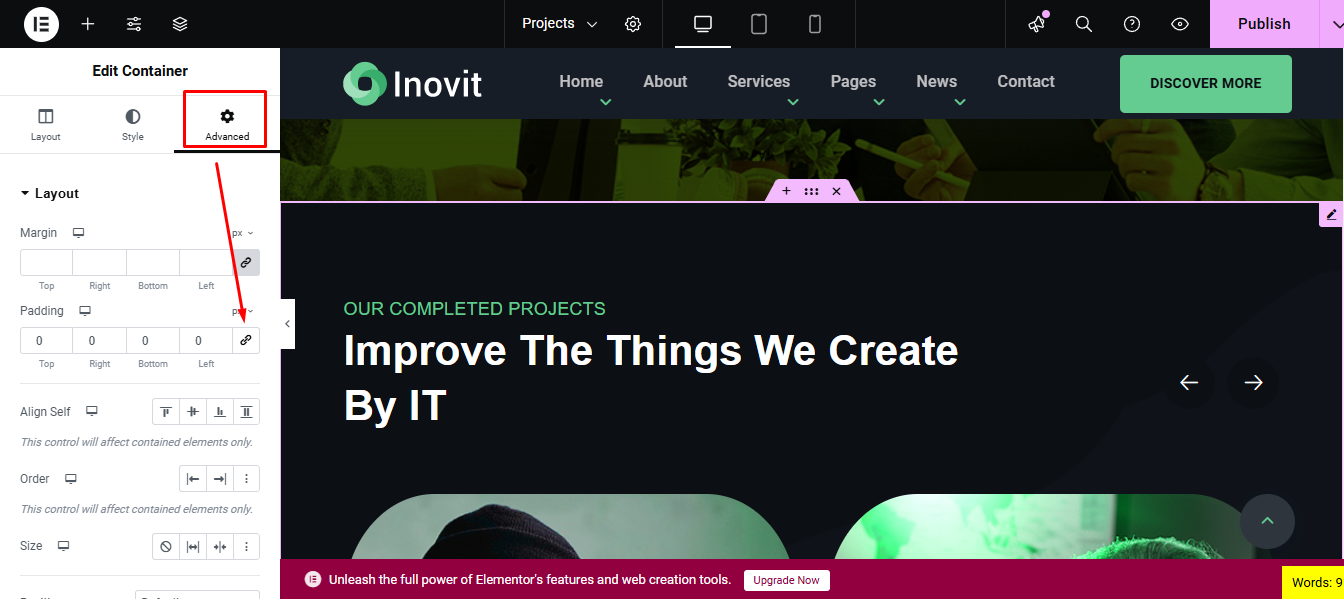
  5. Click section body. Then click 6 dots. Add a section with "full width" at Layout tab and click Advanced tab under the Edit Container in elementor view
  6. Go to advanced tab "padding" 0 unlink for section box no-gap.
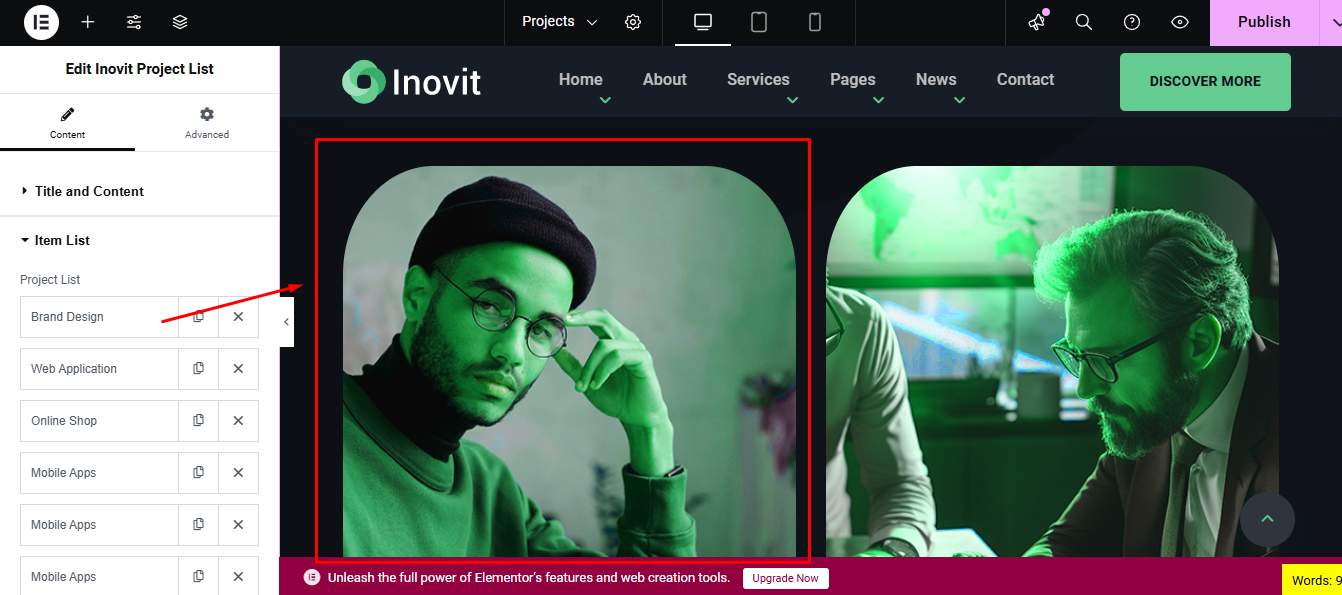
  7. Choose and drop a Portfolio Projects element from the left side
Create a portfolio page

Elementor Widgets

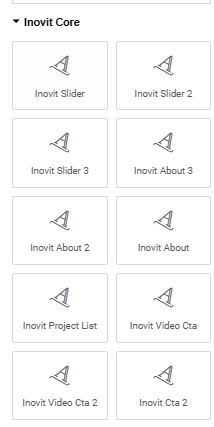
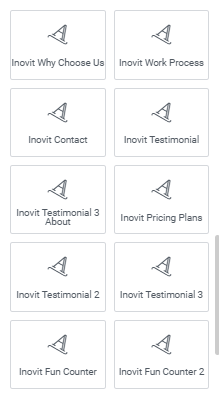
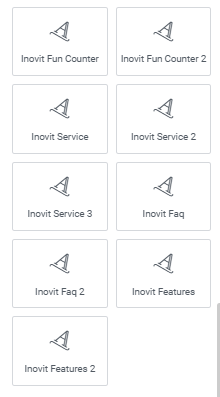
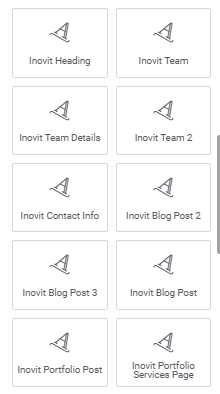
Elementor Page Builder has a lot of built-in widgets by default. But for your convenience we've created several custom Elementor Widgets that you can use in your website and extend website functionality. You can find them under Inovit Core section on Elementor edit mode.

Translating Theme

You can translate this theme to another language easily. You have to translate several things for your website to work properly:

  1. Theme: Inovit
  2. Plugin: Inovit Core

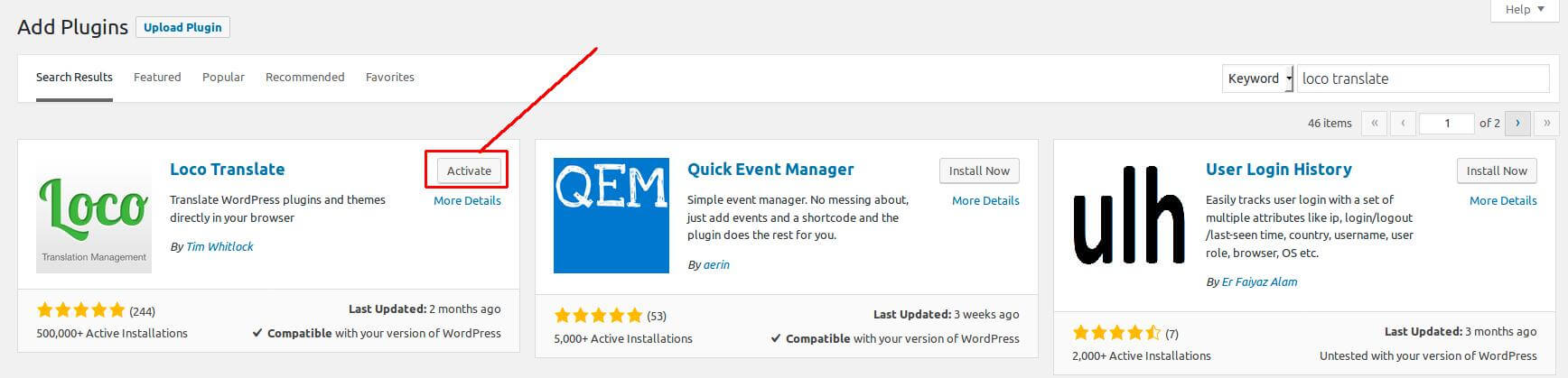
There are many tools available for translation. But the easiest way is to use plugin " Loco Translate". Using this plugin, you can literally translate any WordPress themes or plugins if it supports translation.

--- Here's a step by step tutorial about translating any themes and plugins using "Loco Translate":

Step 1: Install and activate plugin "Loco Translate".

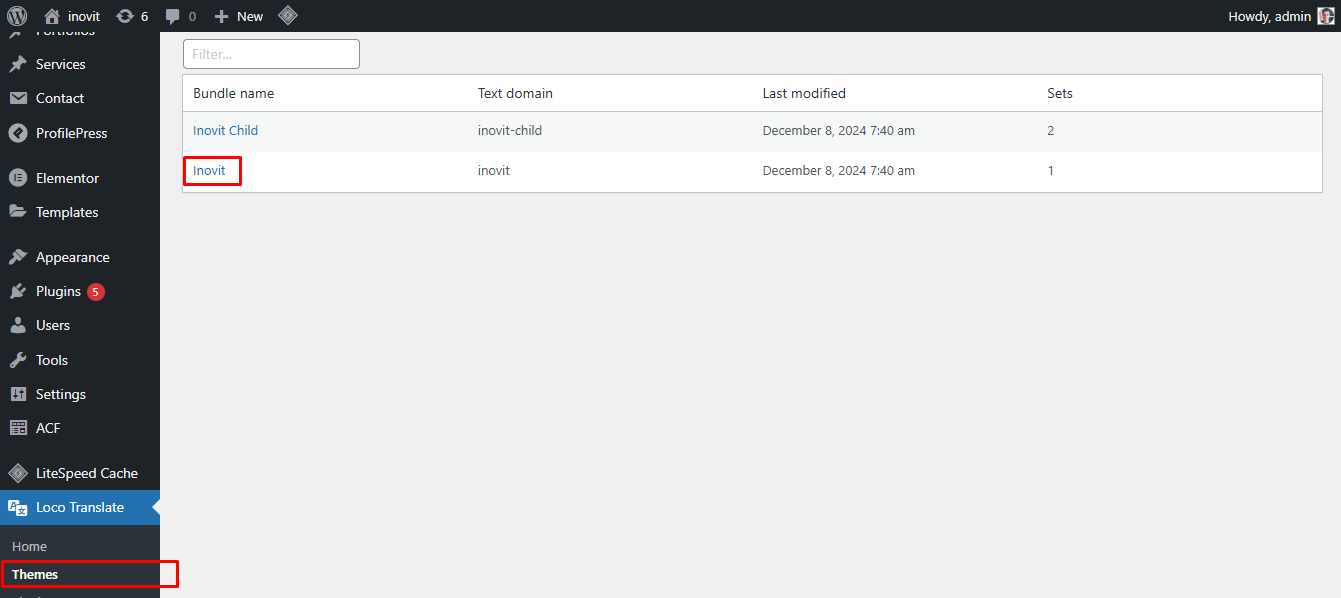
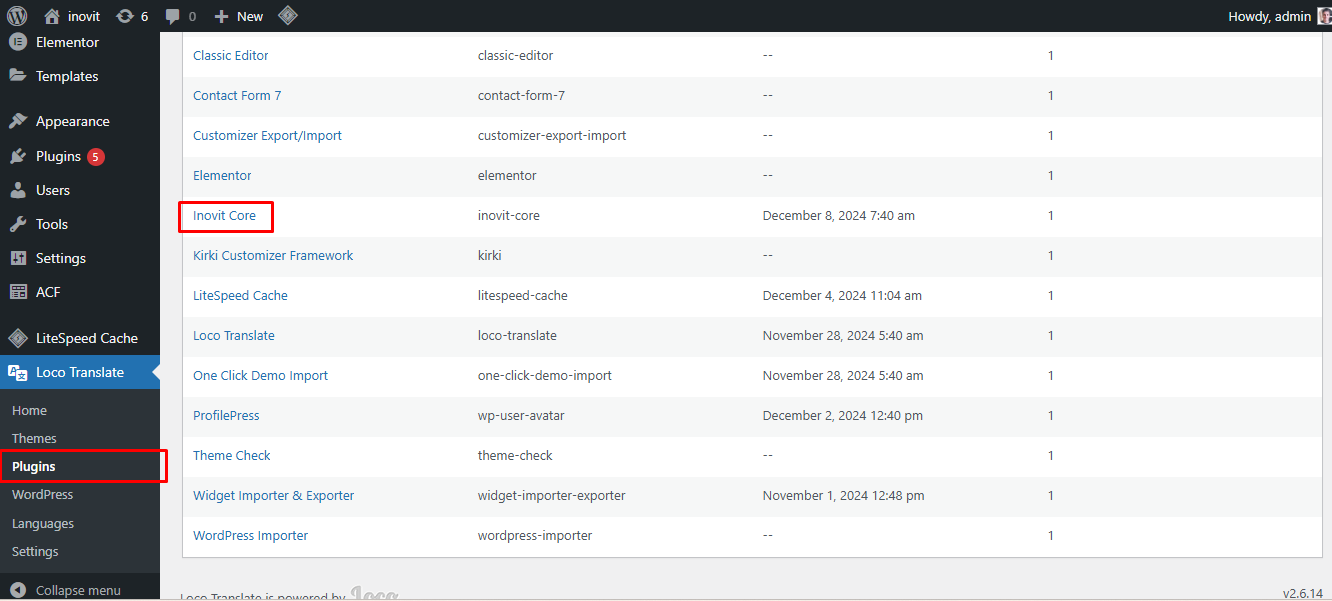
Step 2: Select the Theme or Plugin you want to translate from "Loco Translate" menu.

Step a: Theme Translate

Step b: Plugin Translate

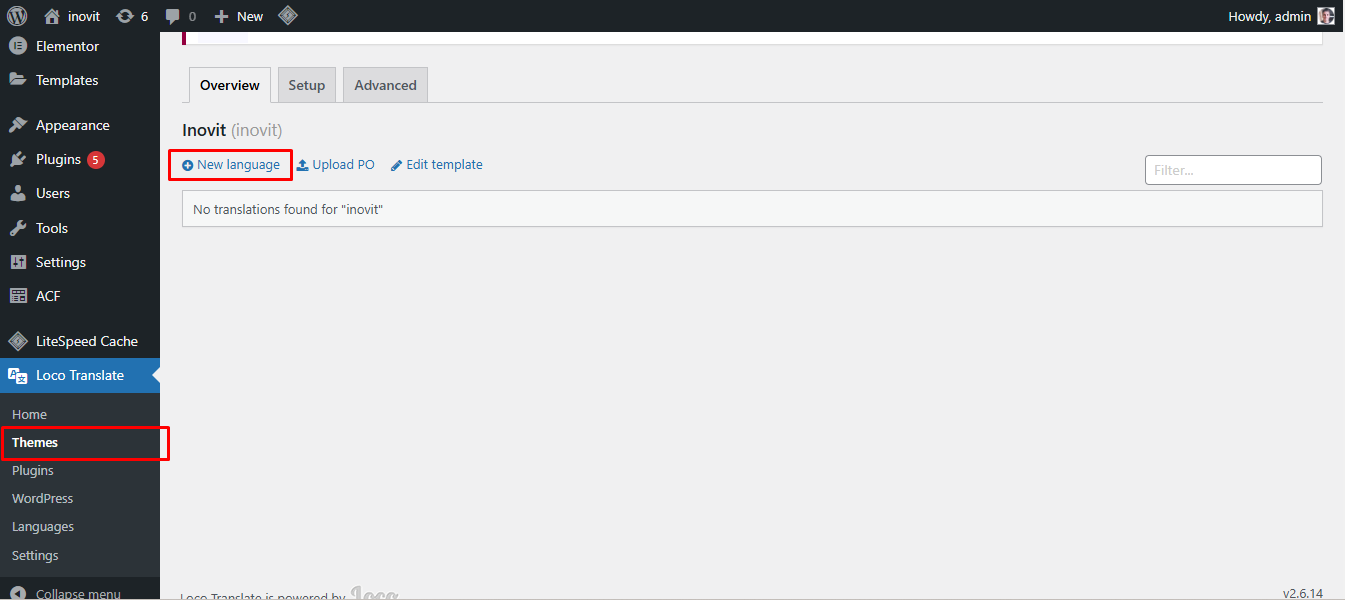
Step 3: Click on New language link.

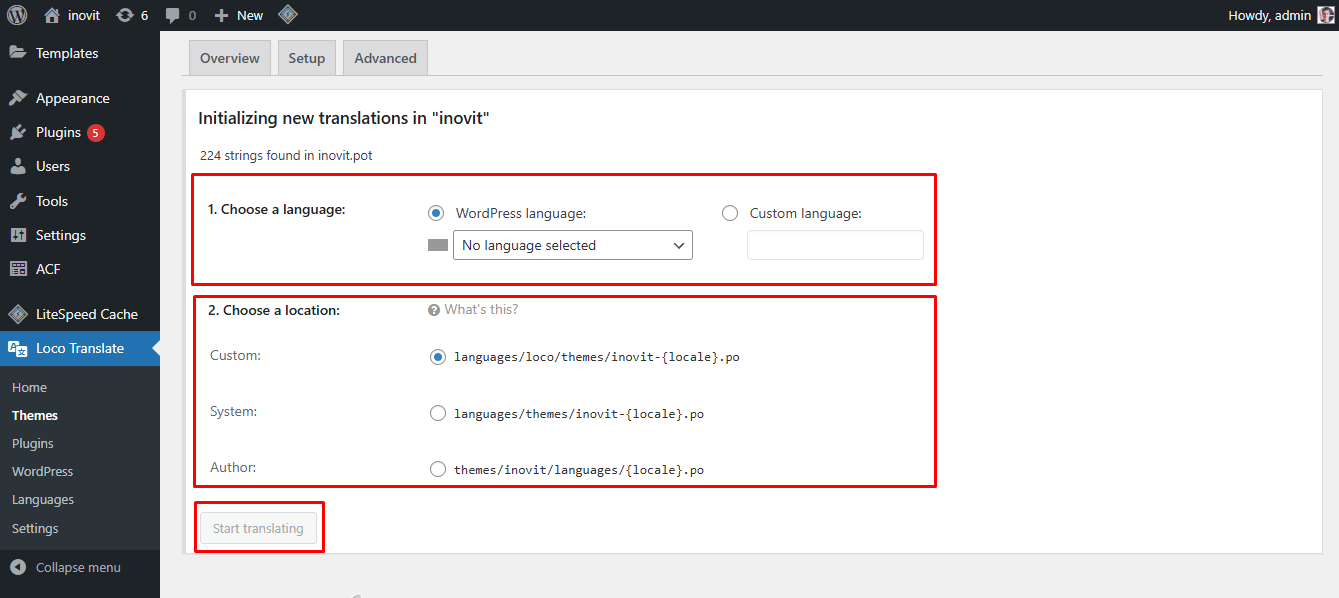
Step 4: Select your preferred language, and also select your location as "System". Then click on "Start Translating" button.

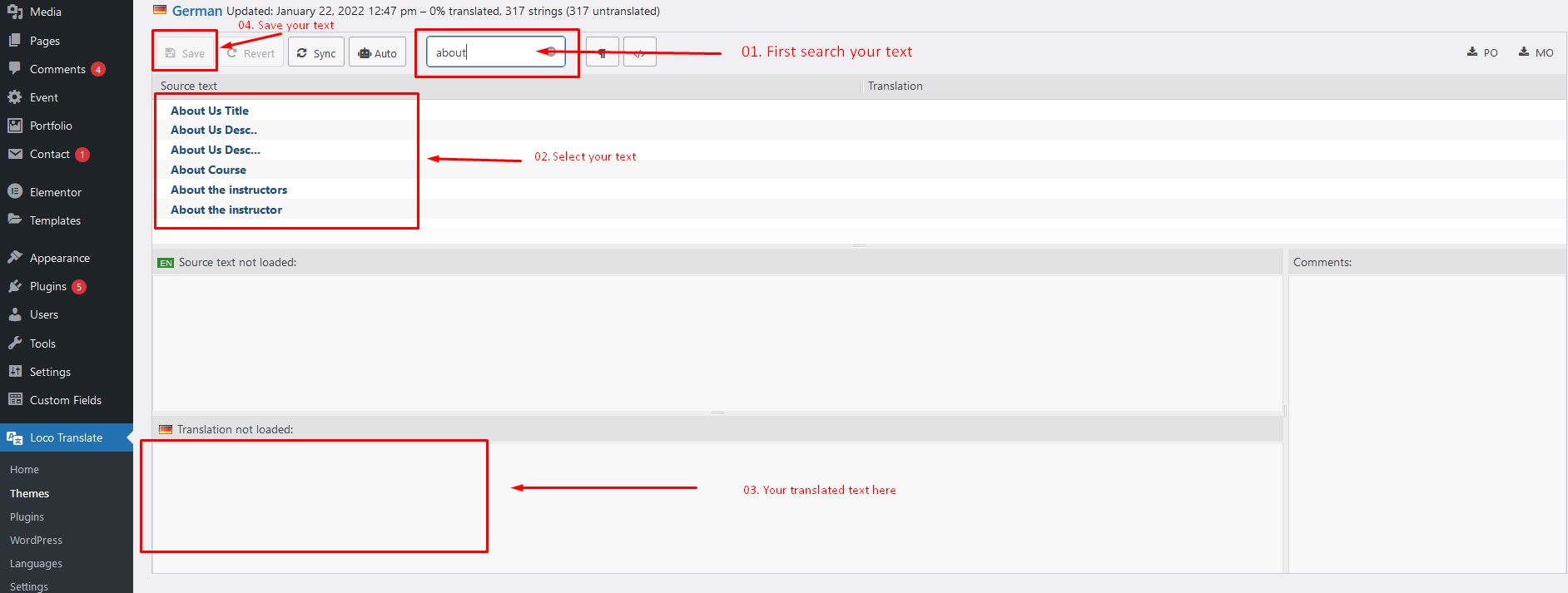
Step 4: Click on the "Sync" button for the first time. Then start translating strings like the image below.

Here's a quick video tutorial about how to use Loco Translate:

404 Error in all pages

If you face this type of issue, please update your permalink. To update permalink, navigate to Settings -> Permalink and then click on Save Settings button.

17. Contact

If you face any issue please contact us at Support Ticket. We provide 15 hours real-time support for our customers.

Thank you for purchasing our theme.